1. Overview
Charge Anywhere’s Transaction Manager (TM) is a secure, web-based portal that allows partners (ISOs) to centrally manage their merchant portfolio. From overseeing transactions to configuring terminals and fraud controls, TM serves as a unified control panel for all merchant operations.
2. Key Capabilities for Partners
As a Partner, you have advanced administrative capabilities that go beyond what standard merchants can access. These include the ability to search for and select any merchant associated with your account, and once a merchant is selected, you can perform all merchant-level operations on their behalf.
Partners can:
- Search and select merchants using the Select Merchant tool with filters such as Merchant ID, Company Name, etc.
- Perform all functions available to merchants once a merchant is selected, including processing transactions, managing recurring billing, using Bill Pay, accessing the Customer Vault, and more.
- Manage multiple merchants from a centralized interface.
- Access powerful system-level tools via the Tools menu, including:
- Software License Management: View or manage licenses by merchant or device.
- Two-Factor Authentication: Enable or configure 2FA for enhanced security.
- SSO Configuration: Set up Single Sign-On using custom keys and redirect URLs.
- Transaction Errors: Filter and analyze failed transactions by type and time.
- SMTP Configuration: Customize how system-generated emails are delivered.
- Recurring Status Reports, Failed Batches, and Suspect Batches: View diagnostics and reporting related to merchant operations.
These capabilities enable partners to oversee all aspects of merchant processing.
3. Prerequisites
Ensure the following before accessing TM:
- You are a registered Partner (ISO) with Charge Anywhere.
- You have partner-level login credentials.
- You are assigned one or more merchant accounts under your partner profile.
4. Accessing the Transaction Manager
You can access TM in two ways:
- Direct URL
- Via Website: Visit
https://www.chargeanywhere.comand choose Transaction Manager from the main menu.
5. Log In to Your Account
To log in:
- Open a supported browser and visit the following URL:
- Enter your Username and Password.
- Click Login to access the dashboard.
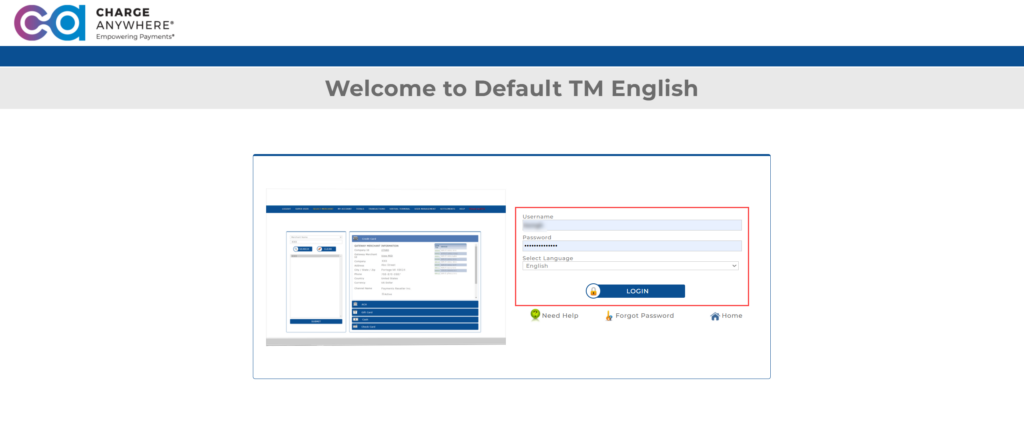
Tip: Use “Forgot Password” or “Need Help” if you’re having trouble logging in.
Support Contact:
- Phone: (800) 211-1256
- Email: support@chargeanywhere.com
6. Interface Overview
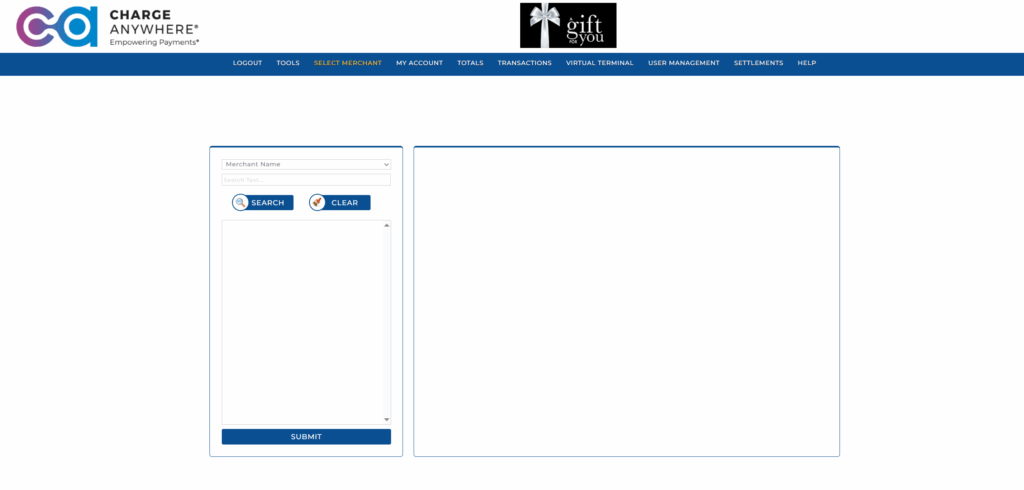
After logging in, you’ll see:
- A Navigation Bar at the top of the screen, featuring system-wide tools.
- The Select Merchant link (top left), used to operate on behalf of specific merchants.
- Feature categories like:
- Virtual Terminal
- Bill Pay
- Recurring
- Customer Vault
- API Credentials
- Fraud Detection
- Settlements
- User Management
Once you select a merchant, all features reflect that merchant’s environment.
7. Transaction Manager Navigation
The navigation bar provides access to all Transaction Manager modules. The structure is consistent for partners but adapts dynamically based on merchant selection.
Here’s an overview of primary navigation categories and their sub-options:

1. LOGOUT
| Feature | Description |
|---|---|
| Logout | Logs the user out of the Transaction Manager. It is recommended to use this option to securely end your session. |
2. TOOLS
The Tools menu provides access to configuration, diagnostics, and reporting options that help partners manage merchant-level settings and troubleshoot common issues.
| Submenu Option | Description |
|---|---|
| Software License | Allows you to search for and manage software license keys by merchant or device. You can filter by Channel Name, Company Name, Device, Product, and status. |
| Two-Factor Authentication | Enables or disables two-factor authentication (2FA) for enhanced login security. Supported methods include OTP, DUO, and TOTP-based authentication. |
| SSO Configuration | Configure Single Sign-On (SSO) using symmetric and asymmetric encryption. This option lets you generate/import keys and define redirect URLs for secure login. |
| Transactions Errors | Lets you filter and search for failed or errored transactions by Identification, Response Type, or Date Range. Includes detailed response codes. |
| SMTP Configuration | Choose between default or custom SMTP settings to control how system emails (like alerts or receipts) are sent. |
| Recurring Status Report | View a status summary of recurring transactions across merchants. You can filter by Payment Type, Error status, and other fields like Amount or Date. |
| Failed Batches | Identify and troubleshoot batches that failed to settle. Filter using Identification or Batch Status (e.g., Unprocessed). |
| Suspect Batches | Review batches flagged for unusual activity, such as processing anomalies or settlement mismatches. Includes merchant and settlement info. |
3. SELECT MERCHANT
| Feature | Description |
|---|---|
| Merchant Selector | Opens a window to search for a merchant using filters like Merchant ID, Company Name, etc. After selection, all subsequent navigation items reflect that merchant’s environment. |
4. MY ACCOUNT
Provides access to the user’s own configuration settings and system preferences.
| Submenu Option | Description |
|---|---|
| Preferences | Set your time zone, default search window, home screen, and fraud alert email. |
| Merchant Profile | View and edit merchant-specific details like address, contact, and default settings. |
| Event Viewer | View logs of all user, device, or transaction-related events by date. |
| Fraud Detection Settings | Configure rules to block or alert based on transaction velocity. |
| APIs Credentials | View the MID, TID, and Secret Key needed for eCommerce integrations and API access. |
5. TOTALS
This screen provides summarized reporting on the merchant’s transactions.
| Feature | Description |
|---|---|
| Payment Type Filter | Select the type of payment (Credit, ACH, etc.). |
| Date Range Filter | Filter totals for specific start/end dates. |
| Recurring Filter | Filter totals related to recurring payments. |
| Export / Reports | Generate reports: – Short Report (summary) – Detail Report (breakdown) – Export (CSV/download) |
Report totals include:
- Purchase/Return Count and Amount
- Total Tax, Tips, and Discounts
- Net Totals
6. TRANSACTIONS
This section allows users to query and manage transaction activity.
| Feature | Description |
|---|---|
| Advanced Filters | Search by payment type, device, transaction type, card number, transaction ID, and more. |
| Search Actions | – Search to query records – Clear to reset filters |
| Export & Reports | Right panel contains: – Export Setup – Export Transactions – Short/Detail Reports – View Transaction Summary – Export Emails |
| Cashiering Report | Summary for cashier/operator transaction activities. |
| Transactions Settings | Customize display or export formats. |
| QB Export | Export data in a format compatible with QuickBooks. |
7. VIRTUAL TERMINAL
Facilitates manual and recurring transactions for card-not-present environments.
| Submenu Option | Description |
|---|---|
| Virtual Terminal Options | Manual entry for card info to process a sale. |
| Payment Forms | Setup Pay Now buttons and hosted form links. |
| Bill Pay | Send invoices to customers for one-time payments. |
| Customer Vault | Securely store and manage customer payment details. |
| Auth Only Database | View pre-authorized transactions before they are captured. |
| Batch Transactions | Bulk processing interface for multiple transactions. |
| Recurring Database | Manage subscriptions: frequency, start date, billing amount, and more. |
8. USER MANAGEMENT
Used by merchant administrators to manage staff access.
| Feature | Description |
|---|---|
| Create/Edit Users | Add new users and assign access levels (Merchant, Admin, etc.). |
| Search User Records | View user details by first/last name, username, email. |
| Modify Permissions | Adjust access rights based on role and activity. |
| Submit & Clear | Submit form data or reset it. |
9. SETTLEMENTS
All batch-related configurations and reports are managed here.
| Feature | Description |
|---|---|
| Batch Search | Filter settled batches by date range, processor, or identification number. |
| Settlement Center | (For supported processors like TSYS) manually close a batch. |
| Settlement Email Settings | Enable and configure automated batch reporting via email. |
| Close Batch | Manually initiate batch closure (if applicable). |
| Unlock Batch | Reopen a locked batch for adjustment or reprocessing. |
Batch result summary includes:
- Batch Number
- Sales & Return Totals
- Net Total
- Result and Timestamp
10. HELP
| Section | Description |
|---|---|
| Support Info | Contact details: – Phone: (800) 211-1256 – Email: support@chargeanywhere.com |
Get a monthly summary of technical document updates.