1. Overview
Merchants with an existing list of customers on recurring or installment payment plans can import those records into the Recurring Database in Transaction Manager. This helps merchants upload multiple recurring or installment payment records at one time and reduces the need to manually create each recurring transaction.
Use this guide when you want to upload recurring or installment records in bulk using an import file. For manually adding or managing individual recurring transactions, refer to the Recurring Database User Guide.
Relationship with Recurring Database
Recurring and Installment Import is part of the Recurring Database workflow. After the import is complete, the uploaded records appear in Recurring Database, where merchants can search, edit, process, suspend, delete, or review recurring transaction history.
Use Import for bulk upload. Use Recurring Database > Add when creating a single recurring transaction manually.
Add vs Import Recurring Transactions
| Option | Use this when… | Where to go |
|---|---|---|
| Add Recurring Transaction | You want to manually create one recurring transaction. | Virtual Terminal > Recurring Database > Add |
| Import / Upload Recurring | You want to upload multiple recurring or installment records in bulk. | Virtual Terminal > Recurring Database > Upload Recurring |
| Recurring Database User Guide | You want to add, edit, process, suspend, delete, or review recurring transactions. | Recurring Database User Guide |
| Recurring and Installment Import Specifications | You need the required file format, field sequence, and import rules. | This guide |
2. Recurring Import File Description and Specifications
Recurring File Description: The recurring import setup uses a simple comma-delimited file format to import data.
Fields must be in the following sequence:

Conventions:
- N – Numeric only.
- AN – Alpha Numeric.
- DATE – Date Format (DD/MM/YYYY)
Note: An import file can only accommodate either recurring or installment payments at a time. Both recurring and installment payments cannot be included together within the same import file.
| Field Name | Format | Required | Description |
| Effective Date | DATE | R | Effective Date when the Payment Sequence will start (ex. 06/24/2019). |
| Frequency | N1 | R | 0 = Daily 1 = Weekly 2 = Bi-Weekly 3 = Monthly 4 = Yearly 5 = Quarterly 6 = Semi-Annually |
| Number Of Payments | N1-4 | Required | The Number of Payments to be executed. Use (1) when unlimited number of payments in recurring, else use (0). |
| Customer Number | AN50 | Optional | Customer Number for the transaction. |
| Payment Type | N1 | Required | 2 = Credit 3 = ACH |
| Account Number | N6-19 | Required | Credit card number with no dashes or spaces (ex. 4446661234567892). Bank Account number with no dashes or spaces (ex. 123456789). |
| Routing Number | AN9 | Required | Only applies when the payment type 3=ACH. Routing number of the ACH Account. Use blank if not used. Use blank when payment type is 2=Credit. |
| Account Type | N1 | Required | Only applies when the payment type 3=ACH. 0 = Personal Savings 1 = Personal Checking 2 = Business Checking Use blank when payment type is 2=Credit. |
| Expiration Date | AN4 | Required | Only applies when the payment type 2=Credit. Expiration Date for Card. (ex. 1224). Use blank when payment type is 3=ACH. |
| Address | AN50 | Optional | Street Address for the transaction. |
| Zip Code | AN5-9 | Optional | Zip Code for the transaction. |
| Amount | Required | No dollar signs allowed (ex. 1.01, 10.01). Recurring: Amount to process for the Frequency passed. Installment: Total Installment Amount. | |
| Invoice Number | AN50 | Optional | Invoice Number of the transaction. |
| Full Name | AN50 | Optional | Only applies when the payment type 3=ACH. Full Name of the transaction. |
| Unlimited | N1 | Required | Recurring: (1) if Unlimited, else (0) Installment: always (0) |
3. Importing Your File
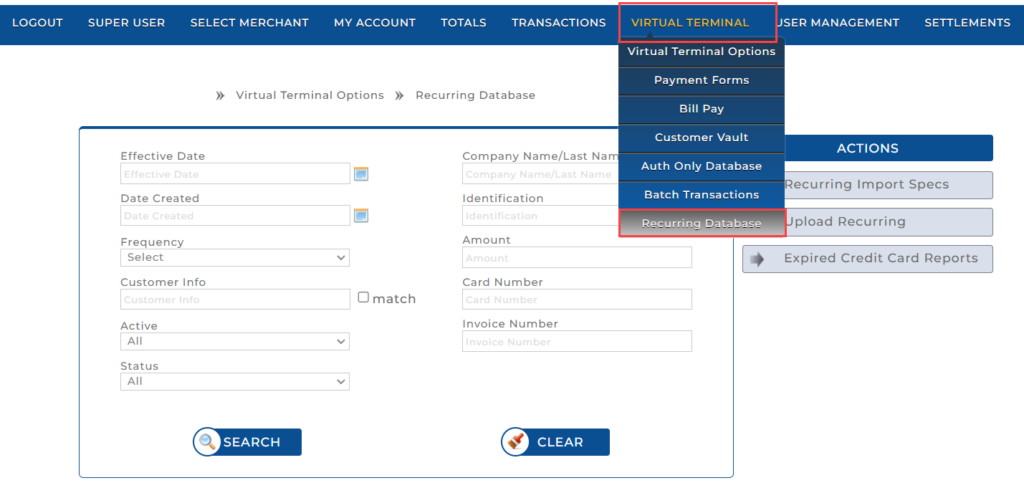
1. Log in to Transaction Manager. Select Recurring Database from the Virtual Terminal pull-down menu.
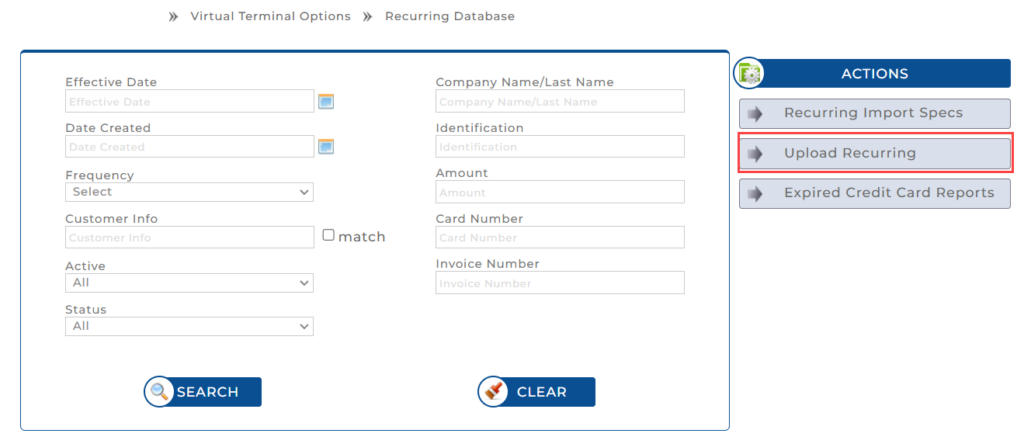
2. Click Upload Recurring.
3. You will be brought to the following screen, which provides options to Download Recurring Import Template or to select an existing file and then import.

4. Click Download Recurring Import Template. You will see a download arrow at the top right of your screen. Click on it to access the template that you can populate.


5. Populate the template according to the specifications provided above.

6. Select Choose File to locate the file you created. Once selected, the file name will appear to the right of the Choose File button.
7. Click Import.
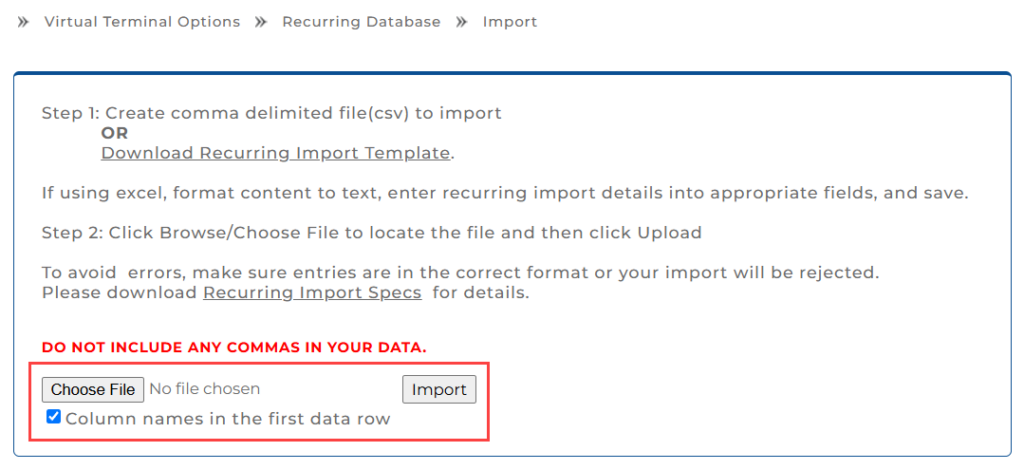
If there are any errors in the file, you will receive a message stating what needs correcting according to the specification. Otherwise, your file is uploaded and ready to be processed for recurring or installment payments.
After Import
After the import is complete:
- Imported records are added to the Recurring Database.
- Merchants can search and review the imported recurring or installment records.
- Records can be managed from Virtual Terminal > Recurring Database.
- If the file contains errors, the system displays a message indicating what needs to be corrected.
- To manage individual records after import, refer to the Recurring Database User Guide.
Note: If you have customers on both recurring and installment payment plans, create one file for all recurring customers and a second file for all installment payment customers so that you can upload both.
4. Important Notes
- Use this guide only for bulk importing recurring or installment records.
- Use Recurring Database > Add to manually create one recurring transaction.
- One import file can contain either recurring payments or installment payments, not both.
- Field values must follow the required format and sequence.
- Amount values should not include dollar signs.
- For credit card records, use blank values for ACH-only fields where instructed.
- For ACH records, use blank values for credit-card-only fields where instructed.
- If customers are on both recurring and installment plans, create separate import files for each type.
5. FAQs
Q: What is this guide used for?
Ans: This guide is used to upload multiple recurring or installment payment records into the Recurring Database using an import file.
Q: When should I use Import instead of Add?
Ans: Use Import when uploading multiple recurring or installment records in bulk. Use Add in Recurring Database when creating one recurring transaction manually.
Q: Can recurring and installment records be uploaded in the same file?
Ans: No. One file can contain either recurring records or installment records. Do not include both in the same file.
Q: Where do imported recurring records appear?
Ans: Imported records appear in the Recurring Database after a successful upload.
Q: What file format is required?
Ans: The import uses a comma-delimited file format. The fields must be in the sequence provided in the specification.
Q: What happens if the file contains errors?
Ans: The system displays an error message explaining what needs to be corrected before the file can be imported successfully.
Q: Can I import credit card and ACH recurring records?
Ans: Yes. The import supports both Credit and ACH payment types, but different fields are required depending on the payment type.
Q: What should I do after importing recurring records?
Ans: Go to Virtual Terminal > Recurring Database to search, review, edit, process, suspend, delete, or check the status of imported recurring records.
6. Related Virtual Terminal Guides
| If you want to… | See this guide |
| Configure hosted payment forms | Payment Form Guide |
| Integrate Payment Forms using API fields | Payment Form Specifications |
| Manage customer records and saved payment methods | Customer Vault User Guide |
| Import customer records in bulk | Customer Import Specifications |
| Send invoice payment links to customers | Bill Pay User Guide |
| Add or manage individual recurring payments | Recurring Database User Guide |
| Manage authorization-only records | Auth Only Database User Guide and Specifications |
| Process multiple transactions together | Batch Transactions for Merchants Guide |
| Build batch files using a technical file format | Batch Processing Specifications for Merchants |
7. Support
If you encounter any issues while using the Recurring Database, contact Charge Anywhere Support at: support@chargeanywhere.com.
8. Change Log
| Date | Update Summary |
| July 14, 2026 | Updated the Overview section. Added FAQ and Related Virtual Terminal Guides sections. |
Get a monthly summary of technical document updates.