The View Merchant Info option in Charge Anywhere’s Transaction Manager provides merchants with a centralized summary of their account profile. This includes business information, processor setup, device configurations, and additional supported payment types such as Gift Card, Cash, Check, etc. It helps merchants validate account status, identify terminal devices, and retrieve integration credentials like the Merchant ID (MID).
If you’re a Partner looking to explore merchant-level details after selection, refer to the Merchant Selection Guide.
Navigating to Merchant Info
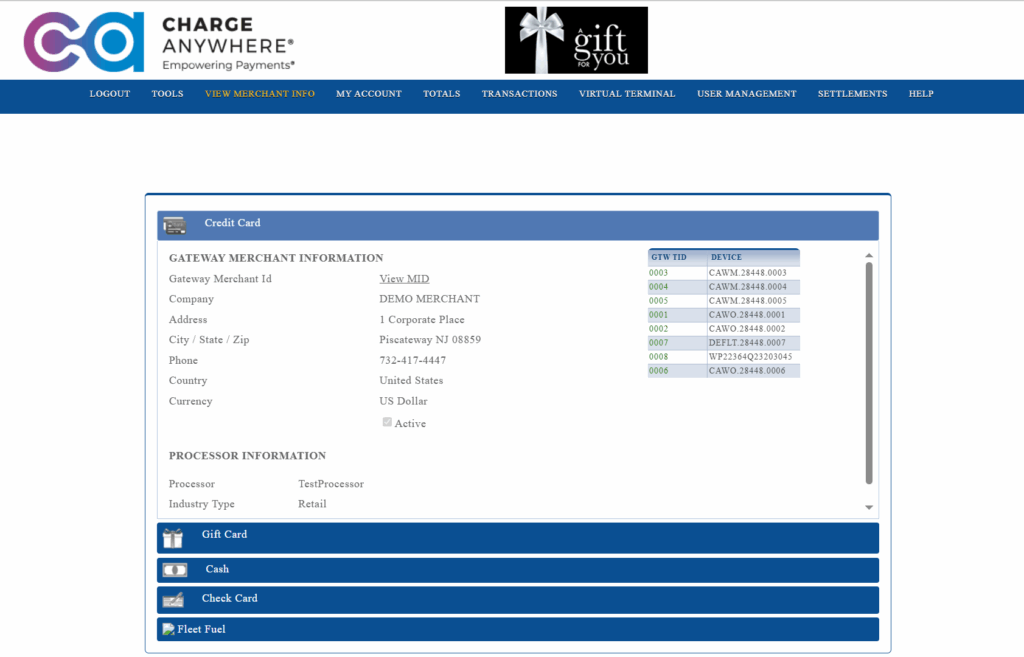
To access merchant details, log in to the Transaction Manager using your merchant credentials. Once you’re on the dashboard, click View Merchant Info from the top navigation bar.
This opens a detailed summary of your merchant profile, including your business information, processor setup, terminal devices, and available payment types.
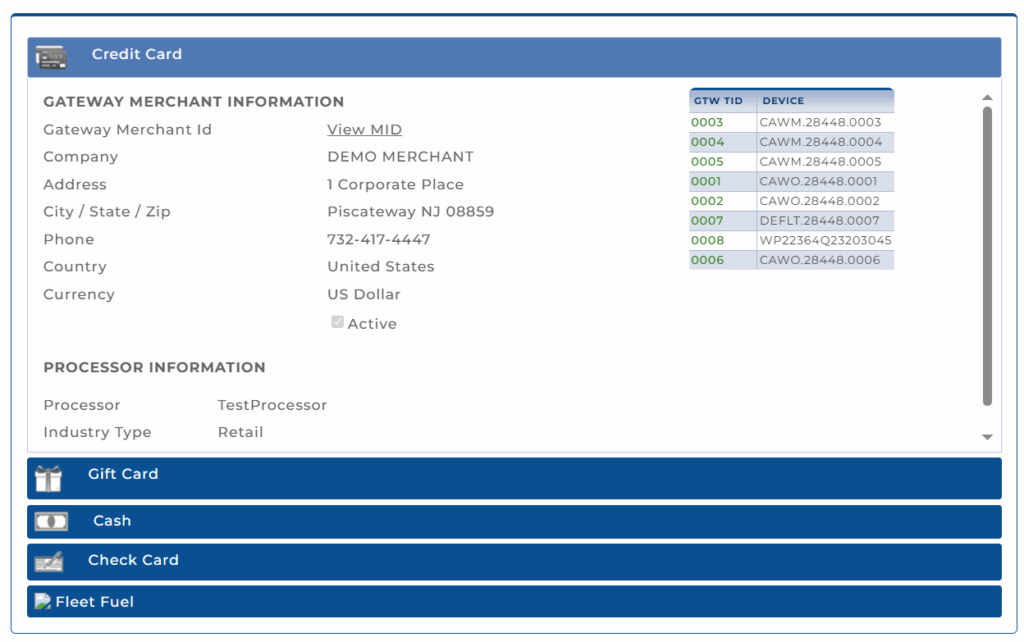
Gateway Merchant Information
After selecting View Merchant Info from the top navigation menu, the default Credit Card tab displays the following fields:
Field
Description
Gateway Merchant ID
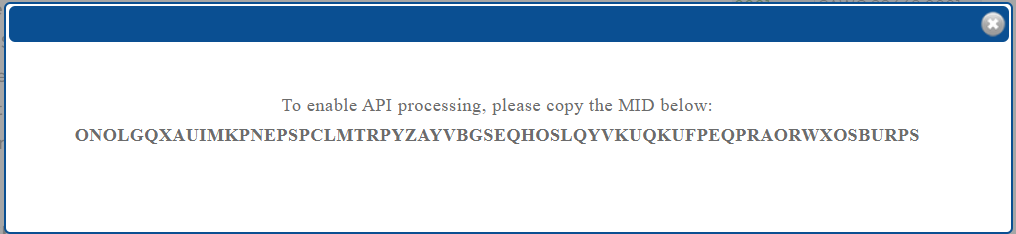
Internal system-generated ID (click View MID to see the encrypted API ID)
Company
Legal merchant name
Address
Street and corporate address
City / State / Zip
Merchant’s registered location
Phone
Contact number
Country
Merchant country
Currency
Default transaction currency
Channel Name
Associated reseller/channel
Active
Status checkbox showing if the account is enabled
Clicking View MID reveals the encrypted Merchant ID string required for API-based payment processing.
Processor Information
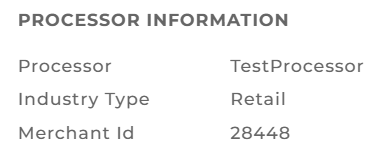
Displayed under the merchant profile, this section outlines how the merchant is configured with the payment processor.
Field
Description
Processor
The active payment processor (e.g., TSYS)
Industry Type
Retail or Restaurant classification
Merchant ID
Unique Merchant Identifier
Device List & Information
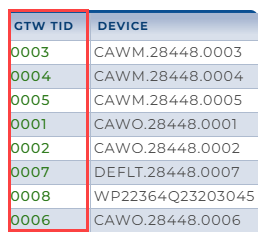
A list of GTW TIDs (Gateway Terminal IDs) and corresponding Device Names appears to the right of the merchant info. These represent all configured terminals under the selected payment type.
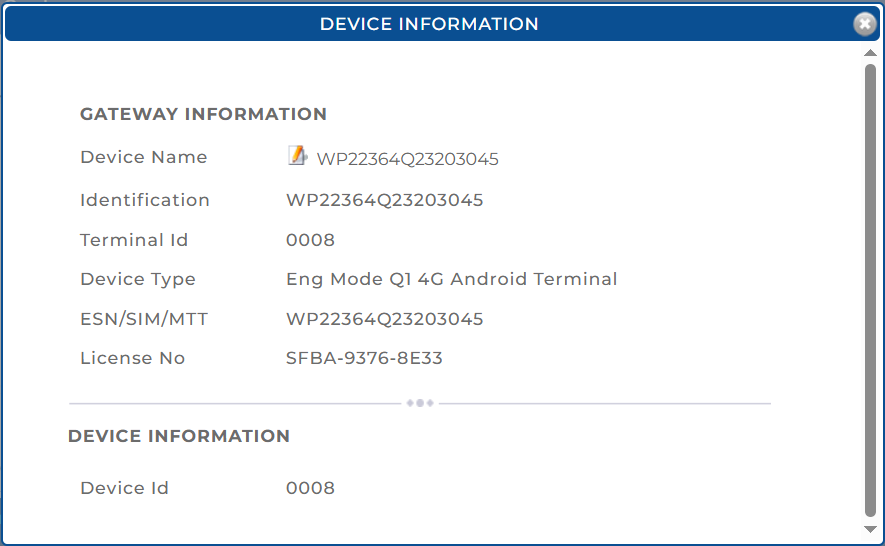
Clicking on any GTW TID opens the Device Information popup, showing:
Field
Description
Device Name
Label or assigned identifier
Identification
Internal ID or serial number
Terminal ID
Internal numeric device ID
Device Type
Model or terminal type (e.g., Android, Q1)
ESN/SIM/MTT
Network/SIM identifier
License Number
Software license attached to the device
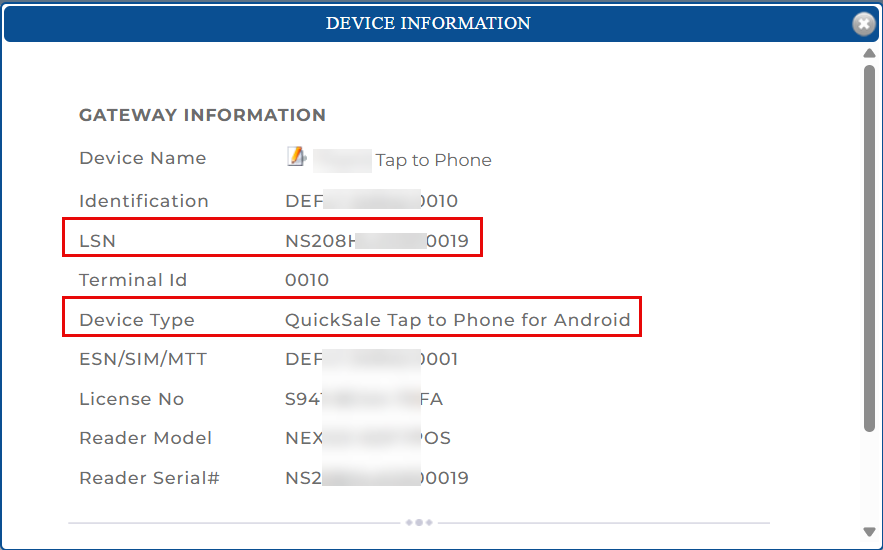
Reader Model
Terminal hardware model (e.g., WIZARPOS Q2)
Reader Serial #
Serial number of the card reader
Device ID
Matches the Terminal ID
Inactive devices display a red warning: “This device service is not active!”
Note: If the Device Type is QuickSale Tap to Phone, an LSN (Logical Serial Number) is displayed.
Additional Payment Type Tabs
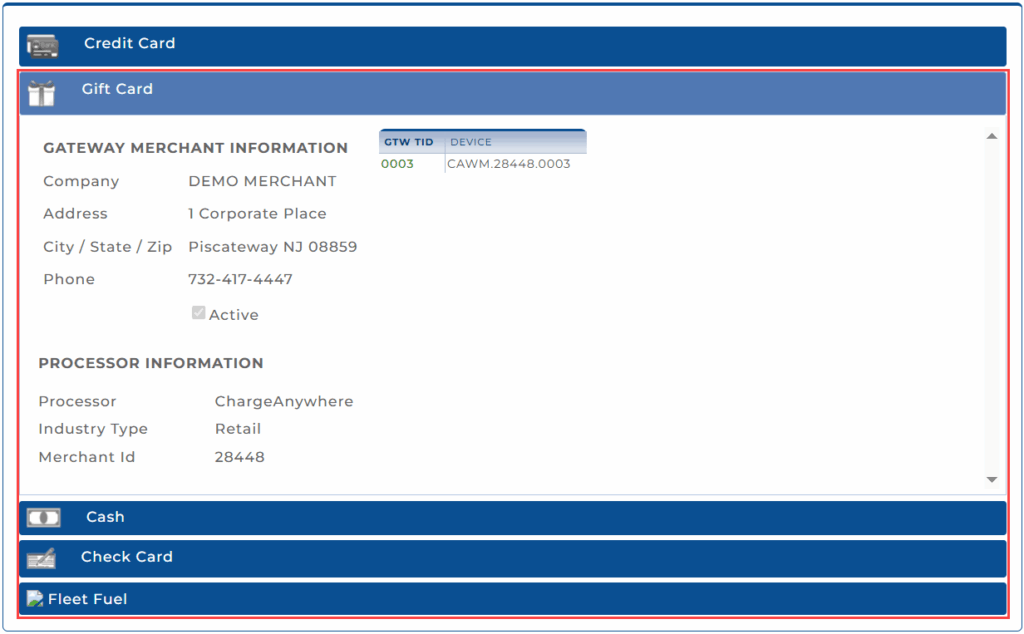
Merchants may see additional tabs if they support other payment methods. Each tab loads independently with its own Gateway and Processor configuration:
Gift Card
Cash
Check Card
Fleet Fuel
Within each tab:
Gateway Merchant Information and Processor Information fields adjust accordingly
Unique GTW TIDs and Device Names are listed per payment type
Clicking GTW TIDs opens the same Device Information popup as seen under Credit Card
Tabs will only appear if the service is provisioned for the merchant. Inactive services may show an empty or inactive status message.
Summary
The View Merchant Info feature gives merchant users full visibility into their operational configuration, covering business credentials, payment processing setup, and connected terminal devices. It also enables secure retrieval of their API MID and the ability to see different payment types supported in their account.
Change Log
Date
Update Summary
March 6, 2026
Added information related to LSN in the Device List & Information section.
Subscribe to Documentation Updates
Get a monthly summary of technical document updates.