Overview
The SMTP Configuration screen allows partners to define how system-generated emails (e.g., notifications, receipts, status alerts) are sent for a selected merchant. This configuration supports both default and custom SMTP server settings, enabling merchants to route messages through their own email servers or services such as SendGrid.
Important: This document is for partners only. Merchants must refer to the Transaction Manager user guide for merchants.
Prerequisites
- You must have access to Transaction Manager with valid login credentials.
- If you do not have login credentials for Transaction Manager, please email the support team
support@chargeanywhere.comto request access.
Login URL
- Test URL:
https://sandbox.chargeanywhere.com/TransactionManager/Login.aspx - Production URL:
https://www.chargeanywhere.com/transactionmanager/login.aspx
Accessing SMTP Configuration
- Log in to Transaction Manager with your partner credentials.
- From the top navigation bar, click the Tools tab.
- Choose SMTP Configuration from the dropdown menu.
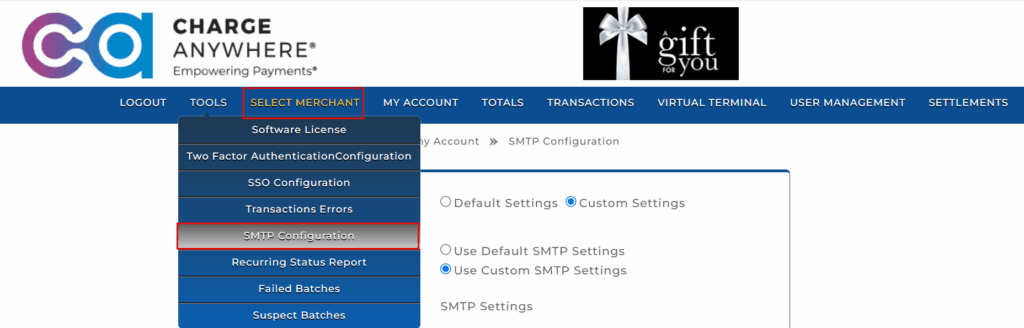
SMTP Settings Options
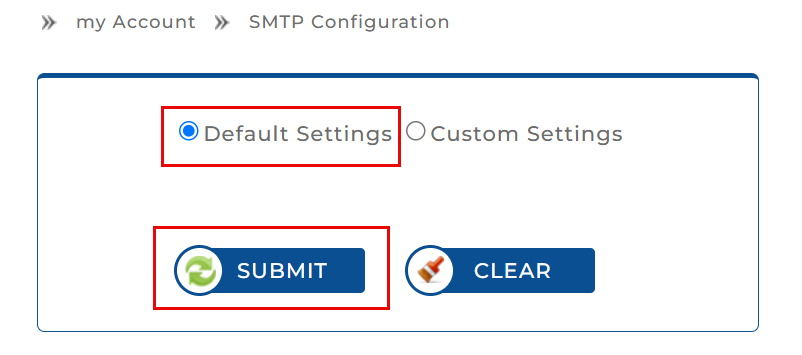
The SMTP Configuration screen provides the following configuration modes:
| Setting | Description |
|---|---|
| Default Settings | Uses the built-in Charge Anywhere SMTP server settings. No additional configuration needed. |
| Custom Settings | Allows merchants to define their own SMTP server settings (e.g., SendGrid, Outlook, Gmail SMTP). |
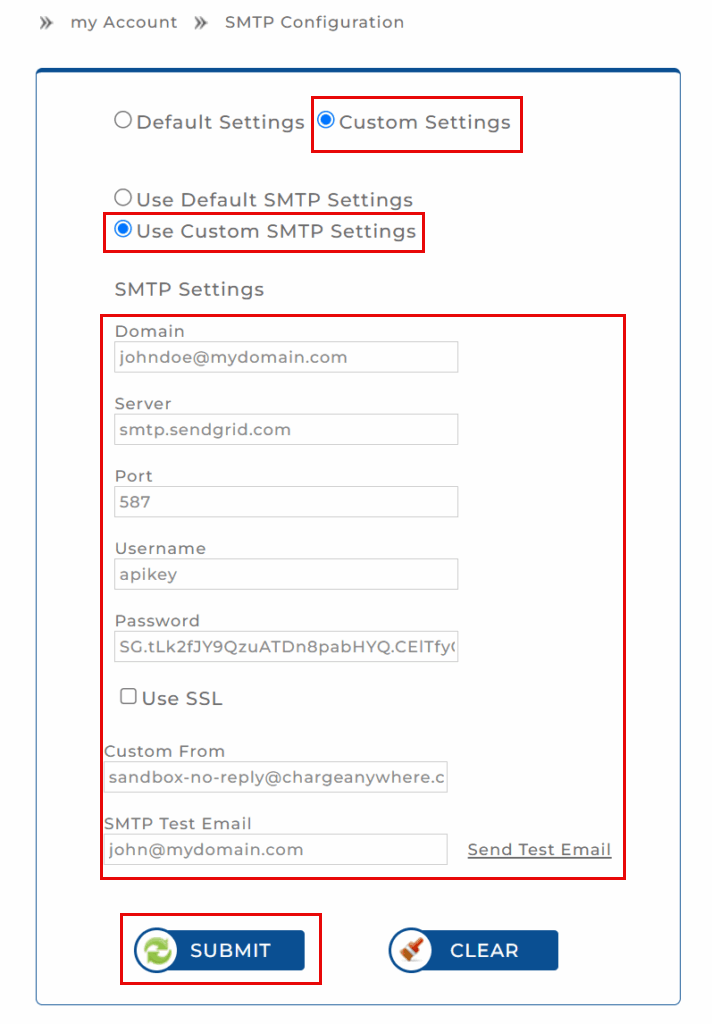
SMTP Custom Fields
When Custom Settings is selected, additional SMTP fields become visible.
| Field | Description |
|---|---|
| Domain | The merchant’s domain name. |
| Server | SMTP server address (e.g., smtp.sendgrid.com). |
| Port | Port number for the SMTP service (e.g., 587 for TLS, 465 for SSL). |
| Username | SMTP authentication username (e.g., apikey for SendGrid). |
| Password | SMTP password or API key. |
| Use SSL | Enable this checkbox if your SMTP server requires an SSL connection. |
| Custom From | The email address that will appear in the “From” field of outgoing emails (e.g., sandbox-no-reply@chargeanywhere.com). |
| SMTP Test Email | Field to input an email address to test the configuration. |
Available Actions
| Button | Function |
|---|---|
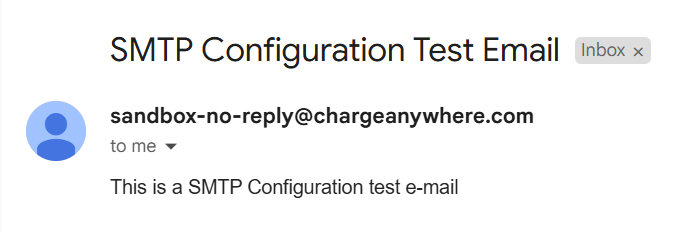
| Send Test Email | Sends a test email using the configured settings to verify successful delivery. |
| Submit | Saves the SMTP settings and applies them to the merchant’s account. |
| Clear | Resets all fields in the form to blank/default state. |
Use Case Example
A merchant using SendGrid would:
- Select Custom Settings and Use Custom SMTP Settings.
- Fill in the following:
- Server:
smtp.sendgrid.com - Port:
587 - Username:
apikey - Password: API key generated in SendGrid
- Custom From:
merchant-no-reply@yourdomain.com - SMTP Test Email:
johndoe@mydomain.com
- Server:
- Click Send Test Email to validate.
- Click Submit to activate.
Notes
- Ensure credentials are accurate to avoid email delivery issues.
- Some providers may require the IP address of Charge Anywhere to be whitelisted.
- It’s recommended to test SMTP configuration immediately after setup.
Subscribe to Documentation Updates
Get a monthly summary of technical document updates.