Overview
The Settlements menu option in Transaction Manager allows merchants to manage payment batch reports, configure email notifications, enable manual settlement, and directly close or unlock batches.
Note: Partners must select a merchant before accessing this feature.
Merchants have direct access upon login.
Log in to Transaction Manager
- Open a supported browser and visit the following URL:
- Enter your Username and Password.
- Click Login to access the dashboard.
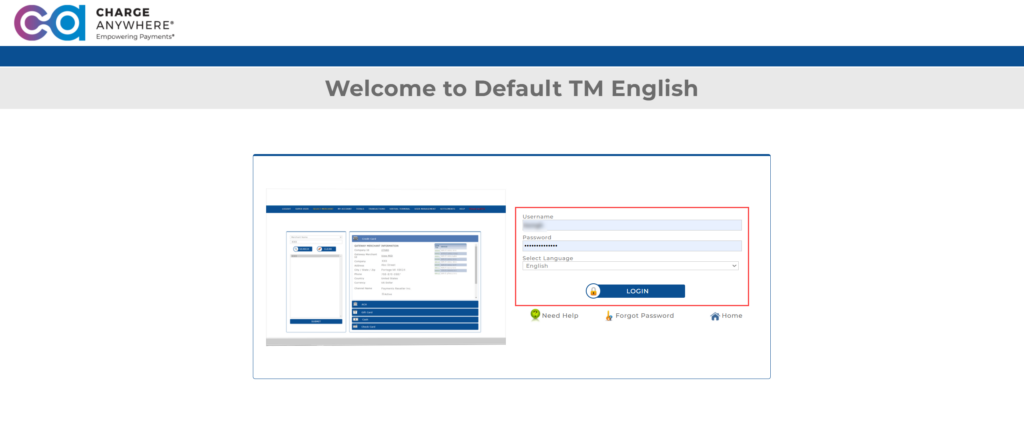
4. Click Settlements on the top navigation bar

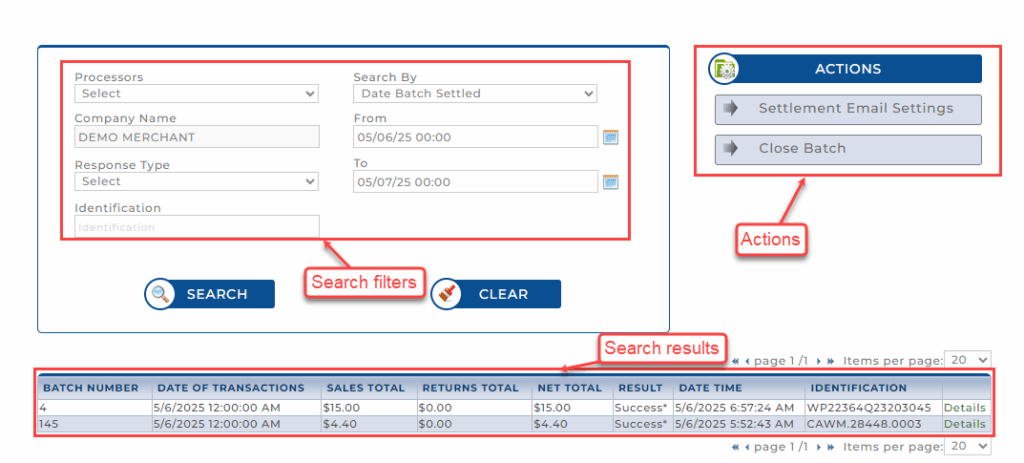
The Settlements page opens. The Actions panel appears on the right.
Viewing Batch Reports
The Batch Reports section allows you to search for previously settled batches and view summary or detailed transaction reports.
To search and view batch reports:
- On the top navigation bar, click Settlements.
- In the filter panel, enter your search criteria as described below.
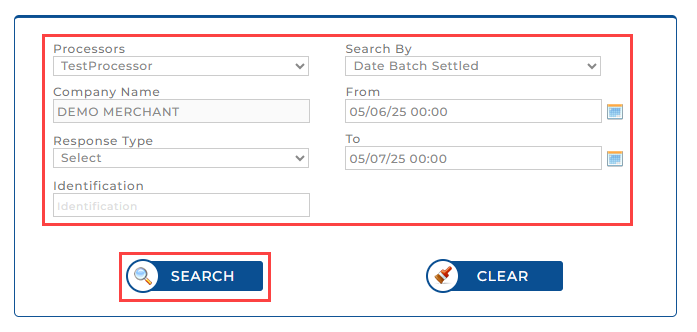
| Field | Description |
|---|---|
| Processors | Select the payment processor handling the merchant’s transactions. |
| Company Name | (Optional) Enter the merchant’s company name. |
| Response Type | Select one of the following: Success, Failure, Duplicate, or Nothing To Do. |
| Search By | Choose either Date Batch Opened or Date Batch Settled. |
| From / To Dates | Specify the date range using the calendar picker. |
| Identification | (Optional) Enter the terminal or device ID used for processing. |
Tip: Selecting a narrower date range improves performance and accuracy.
- Click Search.
The search results appear in a table below the filters.

| Column | Description |
|---|---|
| Batch Number | Unique ID assigned to the batch. |
| Date of Transactions | Date and time the batch was opened. |
| Sales Total | Total value of sales transactions. |
| Returns Total | Total value of return transactions. |
| Net Total | Difference between sales and returns. |
| Result | Status of the batch (e.g., Success). |
| Date Time | Date and time the batch was settled. |
| Identification | Terminal or device ID used for the transactions. |
| Details | Click to open the Short or Detailed report view. |
Viewing a Batch Detail Report
To view a settlement summary or full report:
1. In the results table, locate the batch and click Details.

2. On the next screen, choose one of the following:
- Click Short Report to view a summary grouped by card type.
- Click Detail Report to view individual transactions in the batch.
3. Use the Export button to download the report as CSV or PDF.
4. Use the Print button to generate a physical copy.
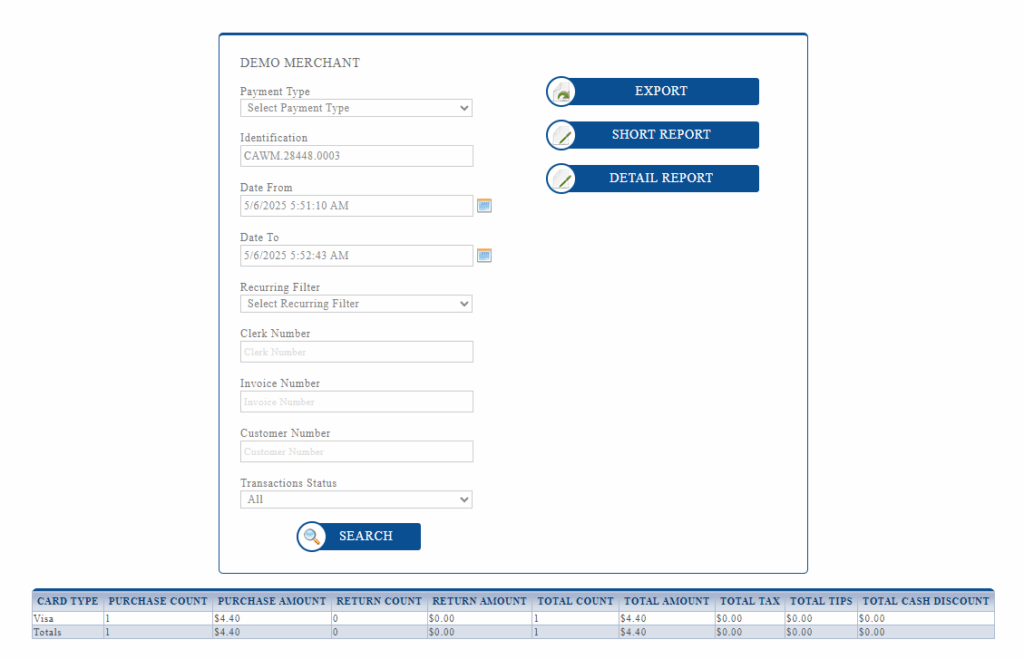
Note: To know more about export, short report, and detail report, refer to the Totals guide.
Actions Panel
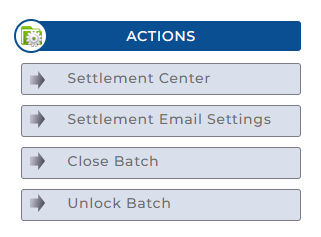
The Actions panel on the right side of the Settlements screen includes the following options:
- Settlement Center: Used to enable manual settlement (for TSYS).
- Settlement Email Settings: Used to configure email delivery of batch summaries.
- Close Batch: Used to manually close open batches.
- Unlock Batch: Used to reopen previously closed batches (when allowed).
Configuring Settlement Center
The Settlement Center allows you to define how merchant batches are settled. You can configure automatic settlement through Charge Anywhere or allow the merchant to manually close batches (for TSYS-supported processors).
To configure settlement settings:
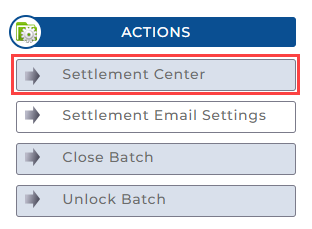
- In the Actions panel, click Settlement Center. The Settlement Center configuration panel appears.
- Configure the settlement mode using the options provided.
| Option | Description |
|---|---|
| Host Based – Time Initiated | Enables the processor to automatically settle batches at a fixed time. Disabled if Host Based – Merchant Initiated is selected. |
| Host Based – Merchant Initiated | Enables merchants to control how batches are settled, either manually or by Charge Anywhere. |
| Merchant Manually Settles Batches | Requires the merchant to manually settle each batch. Available when Host Based – Merchant Initiated is checked. |
| I want CHARGE Anywhere to Settle… | Automatically settles batches through Charge Anywhere at the selected time (Eastern Time). Available when Host Based – Merchant Initiated is checked. |
Important: If you enable Merchant Manually Settles Batches, ensure to use the Close Batch feature to avoid delays in receiving funds.
- Adjust the time setting (AM/PM) if using auto-settlement through Charge Anywhere.
- Click Update to save your configuration.
- Click Clear to reset the form if needed.

Enabling Batch Report Emails
To receive a batch summary via email each time a batch is settled:
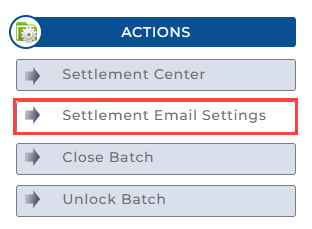
1. In the Actions panel, click Settlement Email Settings.
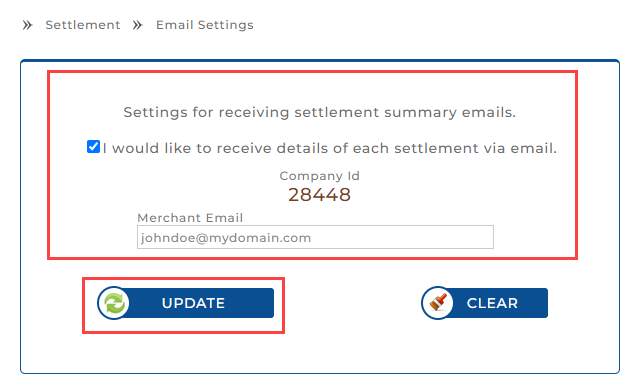
2. On the Email Settings page, select the checkbox:
“I would like to receive details of each settlement via email.”
3. In the Merchant Email field, enter a valid email address.
4. Review the Company ID (auto-filled).
5. Click Update to save the settings.
After saving, batch reports will be emailed automatically to the provided address.
Closing a Batch
To manually close a currently open batch:
1. In the Actions panel, click Close Batch.
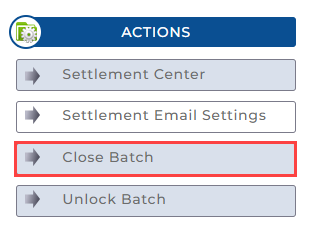
2. A list of open batches appears. Each row shows:
- Identification (Terminal ID)
- DateTimeOpened (When the batch began)
- Batch Number
- Total Sales
- Sales Count
- Total Returns
- Returns Count
- Total Amount
4. Click Close Batch next to the batch you want to close.

A success message appears, and the batch is removed from the list.

Unlocking a Batch
To reopen a previously closed batch (if permitted by the processor):
1. In the Actions panel, click Unlock Batch.
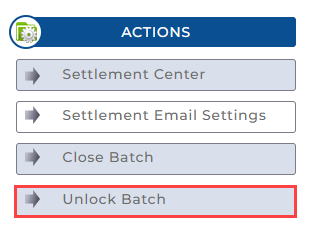
2. If unlockable batches are available, they appear in a table. Each entry shows:
- Identification
- DateTimeOpened
- Batch Number
- Total Sales
- Sales Count
- Total Returns
- Returns Count
- Total Amount
3. Click the Unlock link if available.

If no batches appear, there are no eligible entries to unlock.
Get a monthly summary of technical document updates.