Overview
The Software License feature allows partners to search, filter, and manage software license registrations for merchants and devices. It provides a detailed table listing license information, including activation status, registration dates, products, and associated devices.
This tool is essential for monitoring deployment, validating license usage, and unregistering old or unused licenses.
Important: This document is for partners only. Merchants must refer to the Transaction Manager user guide for merchants.
Prerequisites
- You must have access to Transaction Manager with valid login credentials.
- If you do not have login credentials for Transaction Manager, please email the support team
support@chargeanywhere.comto request access.
Login URL
- Test URL:
https://sandbox.chargeanywhere.com/TransactionManager/Login.aspx - Production URL:
https://www.chargeanywhere.com/transactionmanager/login.aspx
Accessing Software License
- Log in to Transaction Manager with your partner credentials.
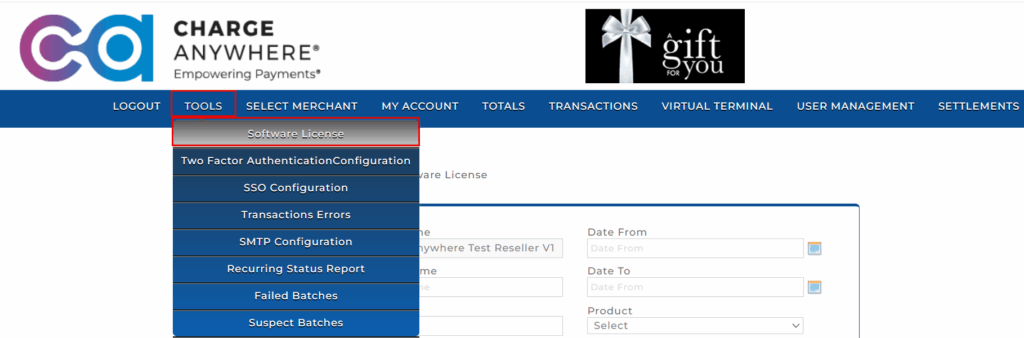
- From the top navigation bar, click the Tools tab.
- Click Software License from the dropdown menu.
Filter/Search Criteria
You can filter license records using the fields below:
| Field | Description |
|---|---|
| Channel Name | Pre-filled with the reseller or channel name (e.g., CHARGE – Anywhere Test Reseller V1). |
| Company Name | Search by the merchant’s registered company name. |
| License Key | Input full or partial license key string. |
| Device Identifier | Terminal or device ID associated with the license. |
| Device | Device model or hardware identifier. |
| Date From / To | Search by license registration date range. |
| Product | Filter by product type (e.g., QuickSale POS, Virtual Terminal, Smartphone). |
| Registered | Choose between Registered or Unregistered licenses. |
| Active | Filter by Active or Inactive licenses. |
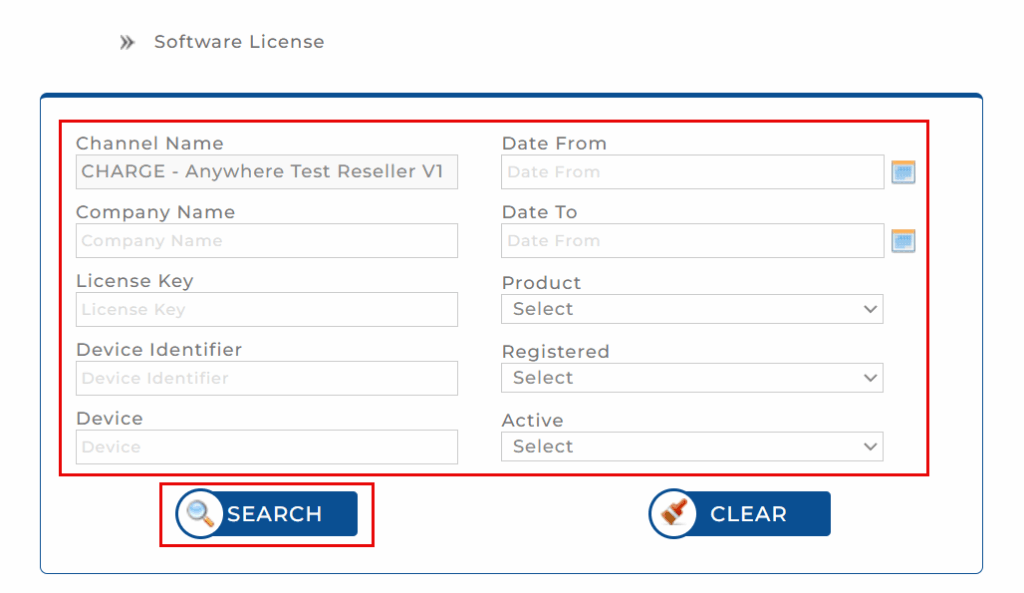
Click Search to execute the query or Clear to reset all fields.
Results Table
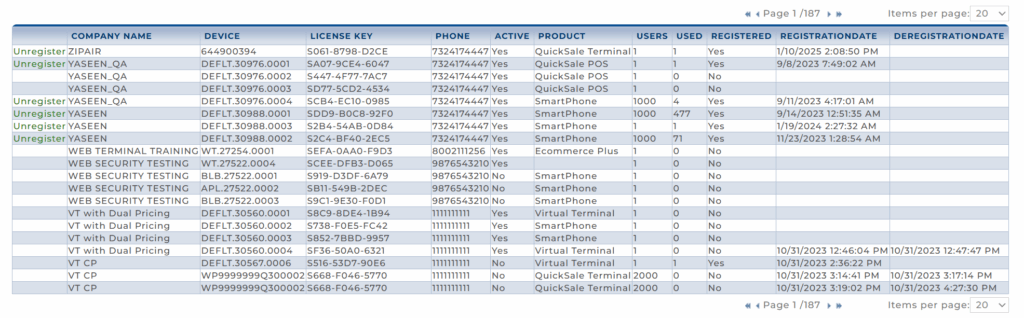
The search results are shown in a paginated table with the following columns:
| Column | Description |
|---|---|
| Unregister | Allows the partner to unregister the license manually. |
| Company Name | Merchant’s company name. |
| Device | Device ID associated with the license. |
| License Key | Unique license code issued to the device. |
| Phone | Merchant phone number. |
| Active | Indicates whether the license is currently active. |
| Product | The software product assigned to the license. |
| Users | Total number of users allowed under this license. |
| Used | Number of users currently using the license. |
| Registered | Whether the license is registered (Yes/No). |
| Registration Date | Date and time the license was activated. |
| Deregistration Date | If applicable, date and time when the license was unregistered. |
Use Case Example
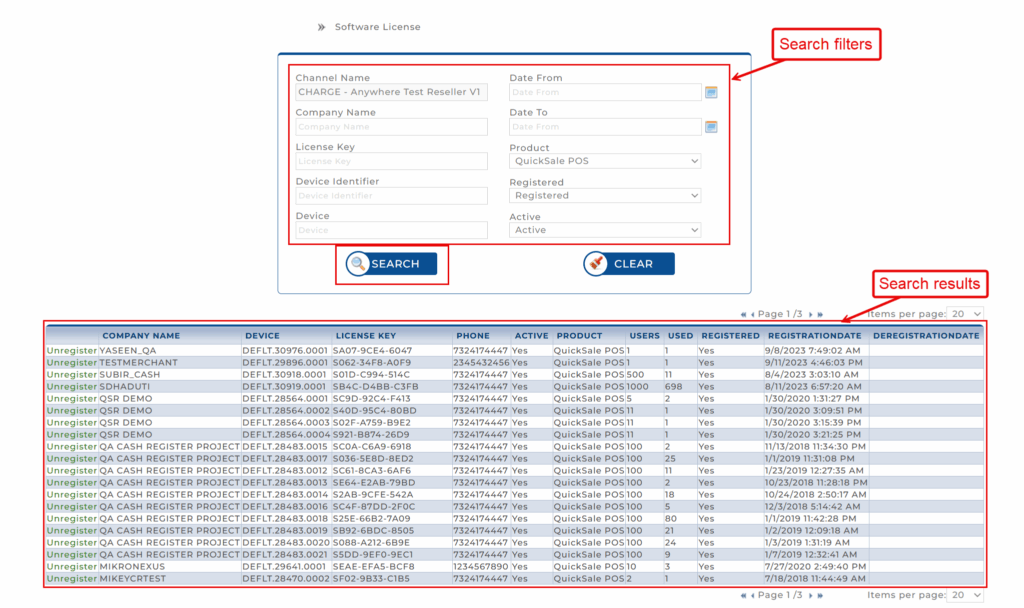
To view all active, registered licenses for QuickSale POS devices, perform the following steps:
- Set Product to QuickSale POS.
- Set Registered to Registered.
- Set Active to Active.
- Click Search.
Unregistering a Device
To unregister a device license, perform the following steps:
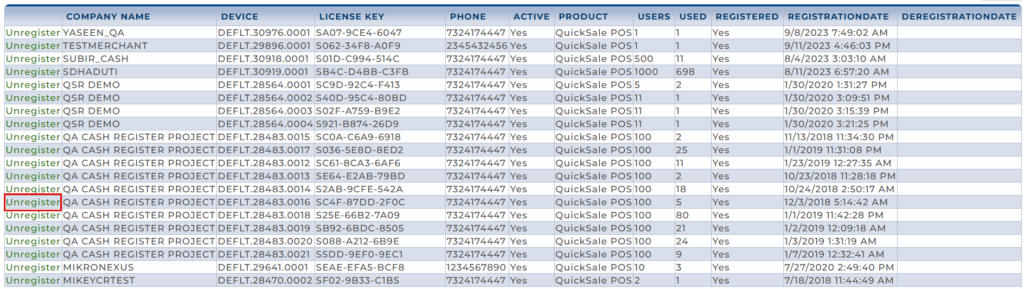
- On the Software License page, locate the device you prefer to unregister.
- Click the Unregister link next to the corresponding row.
Get a monthly summary of technical document updates.