1. Purpose
ComsGate®, the proprietary gateway of Charge Anywhere, facilitates electronic commerce by enabling merchants to accept credit cards and ACH as a form of online payment. The gateway acts as a bridge between the merchant’s website and the financial institution that processes the payment transactions. Merchants may request ComsGate to host the page where the customer enters payment data. This page is referred to as the Payment Form and may be configured to look like the Merchant’s website.
This guide describes how the merchant may configure the Payment Forms available through ComsGate’s Web Terminal Application.
2. Scope
This guide applies to all Merchants and their employees or contractors authorized to use ComsGate’s Web Terminal application.
3. Background
Payment data is collected online from the shopper and submitted to the gateway for real-time authorization. The merchant may collect payment information on their Website using ComsGate’s Payment Form. Using this Payment Form, merchants can collect payment data securely without having a secure Website. The Payment Form offered by Charge Anywhere can be utilized via Client-to-Server or Server-to-Server mode of communication.
4. Definitions
PF – Payment Form
TM – Transaction Manager
CTS – Client to Server
STS – Server to Server
SIP – Simple Integration Protocol
AIP – Advanced Integration Protocol
5. Payment Form Modes
The Payment Form may be used with two different protocols: Simple Integration Protocol and Advanced Integration Protocol. The selected protocol will determine how the collected payment data will be sent to the ComsGate gateway, and will also determine the way the customer views the response.
The Simple Integration Protocol also has two ways to present a payment form to the client.
- SIP Basic: It allows merchants to have Charge Anywhere collect the payment data on their behalf, making it easy for any merchant to set up a Payment Form on their site.
- SIP Advanced: It allows merchants to collect payment data on their own site using an HTML page of their own design if they desire. Both SIP-Basic and SIP-Advanced post information directly to Charge Anywhere ComsGate.
The Advanced Integration Protocol has only one way to present a payment form to the client.
- AIP: The merchant collects payment data and submits it to Charge Anywhere. Payment data passes through the merchant’s servers. The merchant generates the receipt after the successful transaction in AIP.
| Action | SIP Basic | SIP Advanced | AIP |
|---|---|---|---|
| Payment Data is Collected by Charge Anywhere | true | ||
| Payment Data is Collected by the Merchant | true | true | |
| Payment Data is sent to Charge Anywhere | true | true | |
| Payment Data is sent to the Merchant | true | ||
| Charge Anywhere process transaction | true | true | true |
| Receipt is sent by Charge Anywhere | true | true | |
| Receipt is sent by the Merchant | true |
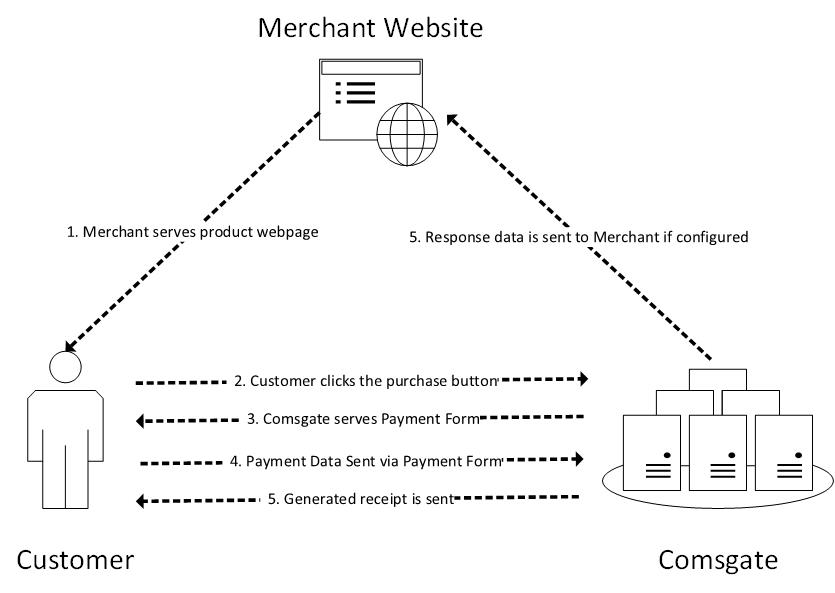
Use case diagram:
- The merchant uses a client-to-server method of communication.
- The merchant delegates the collection of payment data to Charge Anywhere
- Charge Anywhere collects the payment data.
- Charge Anywhere sends a receipt to the customer.
- Charge Anywhere also sends payment data to the merchant.
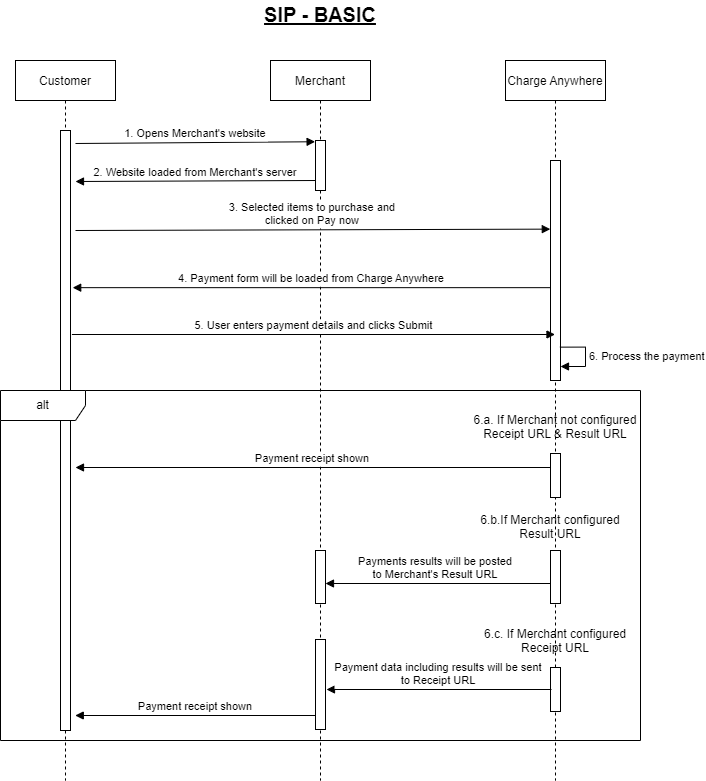
Sequence diagram:
- The user clicks on the pay button on the merchant’s website.
- Charge Anywhere generates a payment form and displays it to the customer.
- The customer fills in payment information and submits the payment.
- Charge Anywhere validates payment information, processes payment, and generates a response.
MerchantReceiptURL:- If provided, Charge Anywhere sends all transaction data to the merchant receipt URL.
- If not provided, Charge Anywhere displays the confirmation page and receipt to the user.
- Send all transaction data to
MerchantResultURLif the merchant provides one - Email the customer if the
EmailCustomerflag is enabled in the payments form.
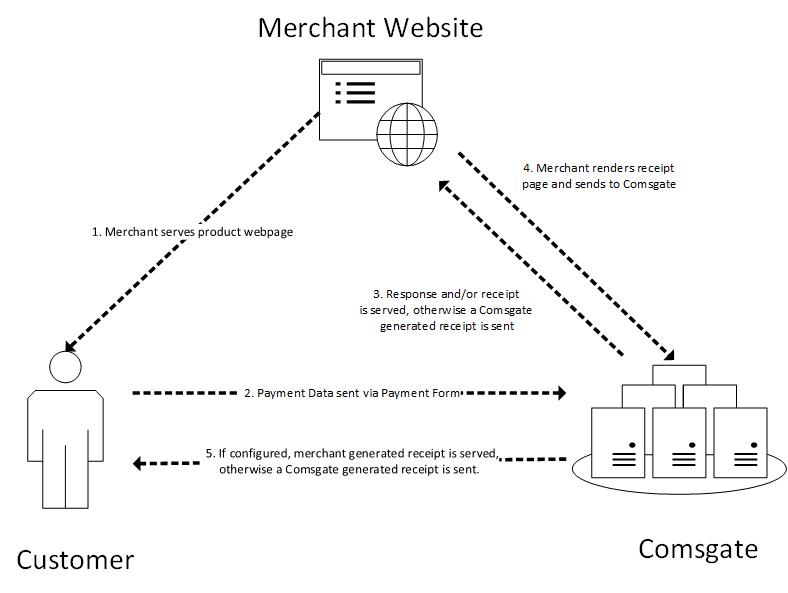
Use case diagram:
- The merchant uses a client-to-server method of communication. The merchant collects the payment data and submits it to Charge Anywhere.
- Charge Anywhere processes the transaction and sends the response to the merchant.
- The merchant customizes a receipt in Transaction Manager, and Charge Anywhere forwards that receipt to the customer. The receipt is configured to look like the merchant’s webpage.
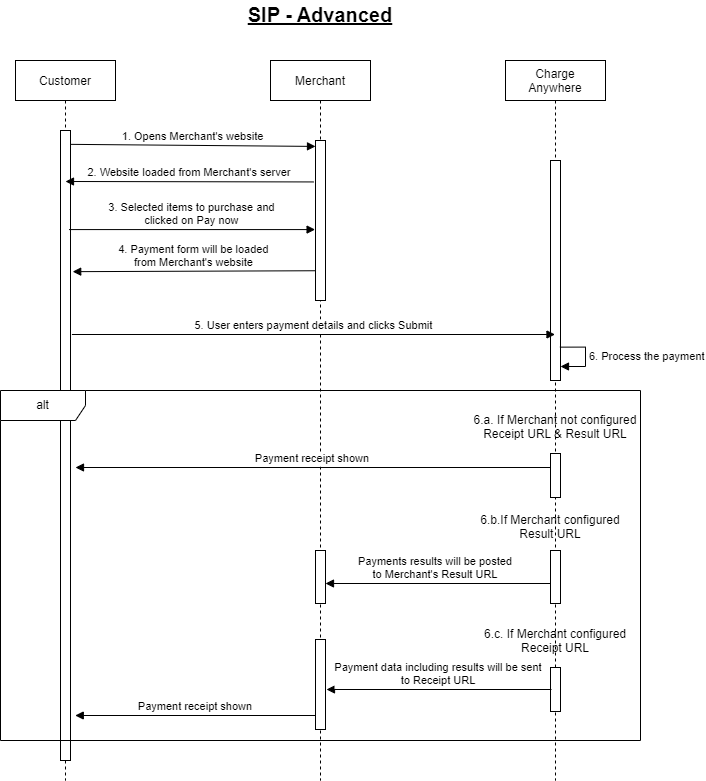
Sequence diagram:
- The customer fills in payment information and submits payment from the merchant’s website
- Charge Anywhere validates payment information, processes payment, and generates a response.
MerchantReceiptURL:
If provided, Charge Anywhere sends all transaction data to the merchant receipt URL.
If not provided, Charge Anywhere displays a confirmation page and receipt to the user.- Send all transaction data to
MerchantResultURLif one is provided by the merchant - Email the customer if
EmailCustomerflag is provided.
Merchants with PCI compliance can implement the Advanced Integration Protocol. To know more about AIP, check out the Advanced Integration Protocol Guide.
6. Payment Form
You can refer to our Payment Form Quick Start Guide for detailed information.
The Payment Form look and feel hosted by Charge Anywhere may be customized from Transaction Manager. It can also be controlled through API calls using the fields from the table below:
| FIELD | REQUIRED | VALUE | MAX LENGTH |
| HeaderLogo | Optional | Valid logo image URL or image saved on the TM payment form configuration | The saved or provided logo URL will be displayed in the header of the Payment Form |
| HeaderText | Optional | Valid text | The text contained in this field will set the Header’s text on the Payment Form |
| HeaderTextColor | Optional | Valid Color hex code | The color hex code in this field will set the header’s color of the Payment Form |
| PageBGColor | Optional | Valid Color hex code | Value in this field will set the background color for the Payment Form. |
| PageFormLayout | Optional | Any valid layout saved from the portal | Value in this field will set the layout of the Payment Form to any supported layout |
| FooterBGColor | Optional | Valid Color hex code | The color hex code in this field will set the footer’s color of the Payment Form |
| FooterText | Optional | Valid text | The text contained in this field will set the Footer’s text on the Payment Form |
| FooterTextColor | Optional | Valid text | The color hex code in this field will set the button’s text in the Payment Form |
| HeaderBGColor | Optional | Valid Color hex code | The color hex code in this field will set the header’s color of the Payment Form |
| ButtonBGColor | Optional | Valid Color hex code | The color hex code in this field will set the button’s color of the Payment Form |
| ButtonTextColor | Optional | Valid text | The color hex code in this field will set the button’s color in the Payment Form |
| MerchantReceiptURL | Required / Default | A valid URL | If a receipt page is not specified, one is available by default |
| MerchantResultsURL | Optional | A valid URL | The results of the transaction are sent to this URL. |
The Payment Form hosted by Charge Anywhere ComsGate (SIP-Basic) may be configured, as specified below.
- All fields on the payment form can be customized. While setting up the Payment Form, the following may be specified:
- View: The check box next to the field must be selected to view the field on the payment form
- Edit: The check box next to the Edit field must be selected to allow the user to make changes to the value of the field.
- Required: The check box next to the field must be selected in order to require a value to be entered in order to save the form and proceed with the checkout process
- The following tables list the fields available on the payment form. The fields are grouped logically in the tables, based on the information submitted. Each table contains the following information:
| Field | Name of the parameter that may be submitted on a transaction |
| Required | Indicates whether the field is required on a transaction |
| Value | Lists the possible values that may be submitted for the field |
| Max Length | Indicates the maximum number of characters that may be supplied for each field. |
| Description | Provides additional details on how the field is used |
Charge Anywhere supports the following three modes.
- Mode 0 = SIP Basic
- Mode 1 = SIP Advanced
- Mode 2 = AIP
Based on their requirements, merchants may submit invoice information with a transaction. The following fields are provided in the ComsGate API.
| FIELD | REQUIRED | VALUE | MAX LENGTH | DESCRIPTION |
| Version | Required | 2.0 | Version of the Protocol. | |
| Mode | Required | 0, 1, or 2 | 1 | Mode used, Default 0 |
| VarAmount | Optional | TRUE | NA | Only applicable to Mode=0 when using a variable amount |
| InvoiceNumber Label | Optional | Any String | 50 | Label to be used when displaying invoice number |
| InvoiceNumber | Optional | Any String | 50 | Invoice number for this Transaction |
| Description Label | Optional | Any String | 225 | Label to be used when displaying Description |
| Description | Optional | Any String | 225 | Description of the transaction |
| Amount | Required | Any Amount | 15 | Total value to be charged |
The customer billing address fields listed below contain the customer billing address information associated with each transaction.
| FIELD | REQUIRED | VALUE | MAX LENGTH | DESCRIPTION |
| CustomerNumber Label | Optional | Any string | 50 | Label to be used when displaying Customer Number |
| CustomerNumber | Optional | Any string | 50 | CustomerNumber for this transaction |
| BIFirstName | Optional | Any string | 50 | Contains the first name of the customer associated with the billing address for the transaction |
| BILastName | Optional | Any string | 50 | Contains the last name of the customer associated with the billing address for the transaction |
| BICompanyName | Optional | Any string | 50 | Contains the company name of the customer associated with the billing address for the transaction |
| BIAddress1 | Optional | Any string | 50 | Contains the address of the customer associated with the billing address for the transaction |
| BIAddress2 | Optional | Any string | 50 | Contains the address of the customer associated with the billing address for the transaction |
| BICity | Optional | Any string | 50 | Contains the city of the customer associated with the billing address for the transaction |
| BIState | Optional | Any five-digit or nine digit zip code | 50 | Contains the state of the customer associated with the billing address for the transaction |
| BIZipCode | Optional | Any valid two-character country code or full country name | 9 | Contains the zip of the customer associated with the billing address for the transaction |
| BICountry | Optional | Any valid two character country code or full country name | 50 | Contains the country of the customer associated with the billing address for the transaction |
| BIPhone | Optional | Any string Recommended Format is (111) 123-1234 | 25 | Contains the phone number of the customer associated with the billing address for the transaction |
| BIFax | Optional | Any string Recommended Format is (111) 123-1234 | 25 | Contains the fax number of the customer associated with the billing address for the transaction |
| BIEmail | Optional | Any valid email address | Email address to which the customer’s copy of the confirmation email is sent. No email will be sent to the customer if the email address does not meet the standard email format checks. |
The following fields describe the customer shipping information that may be submitted with each transaction
| FIELD | REQUIRED | VALUE | MAX LENGTH | DESCRIPTION |
| SIFirstName | Optional | Any string | 50 | Contains the customer’s shipping last name |
| SILastName | Optional | Any string | 50 | Contains the customer shipping last name |
| SICompanyName | Optional | Any string | 50 | Contains the customer’s shipping company name |
| SIAddress1 | Optional | Any string | 50 | Contains the customer’s shipping address |
| SIAddress2 | Optional | Any string | 50 | Contains the customer’s shipping city name |
| SICity | Optional | Any string | 50 | Contains the customer’s shipping state name |
| SIState | Optional | Any valid two-character country code or full country name | 50 | Contains the customer’s shipping zip code |
| SIZipCode | Optional | Any five digit or nine digit zip code | 9 | Contains the customer’s shipping country |
| SICountry | Optional | Any valid two character country code or full country name | 50 | Any valid two-character state code or full state name |
A service fee is a charge collected to pay for services related to the primary product or service being purchased. The charge is configured from the payment form options section in Transaction Manager and will be added and calculated automatically at the time of the transaction.
| FIELD | REQUIRED | VALUE | MAX LENGTH | DESCRIPTION |
| ServiceFeeLabel | Optional | Any string | 50 | Label to use when displaying Service Fee |
- Credit Cards
- Sale: Can be used in all modes. This is the most basic credit card transaction used for the purchase of goods or services
- Auth Only: Can be used in all modes. This credit card transaction is used to verify funds.
- Force: Can be used in all modes. This credit card transaction is used to complete a previously authorized (Auth Only) transaction.
- Void: Can be used in all modes. This credit card transaction is used to cancel a Sale, a Force, or a Return, performed on the current open batch.
- Address Validation: Can be used in all modes. This transaction performs a $0 authorization to verify that the customer’s billing address matches the address on file with the card-issuing bank.
Note: A non-sensitive alternative called token can be used to replace the credit card number and its expiration date. This makes the data completely useless for exploitation. Tokenization only applies to Mode 2.
ACH
- Debit: Can be used in all modes. This ACH transaction is used for the purchase of goods or services
- Refund: Mode 2 Only. This ACH transaction is used to refund funds previously obtained from the customer’s bank account.
The following fields describe the credit card information submitted with each transaction.
| FIELD | REQUIRED | VALUE | MAX LENGTH | DESCRIPTION |
| TransactionType | Optional | String | NA | Default Sale. |
| PaymentMethod | Required | Numeric | 1 | Contains Payment Method. CreditCard=1 ACH=2 |
| CardNumber | Required | Numeric credit card number | 22 | Contains credit card number |
| ExpMonth | Required | MM | NA | Contains 3 or 4-digit number on back of the card |
| ExpYear | Required | YY | NA | Contains the year in which the card expires |
| TokenNumber | Required | Numeric token number | 16 | Contains the month in which the card expires |
| CardVerification Value | Optional | Valid CVV2 value | 4 | Contains a 3 or 4-digit number on the back of the card |
The following fields describe the credit card information submitted with each transaction.
| FIELD | REQUIRED | VALUE | MAX LENGTH | DESCRIPTION |
| PaymentMethod | Required | Numeric | 1 | Contains Payment Method. CreditCard=1 ACH=2 |
| AccountType | Required | Numeric | 1 | Contains Account Type Value. Personal Saving=0 Personal Checking=1 Business Checking=2 |
| RoutingNumber | Required | Numeric | 9 | Contains Routing# |
| AccountNumber | Required | Numeric | 6 or more | Contains Account# |
Captcha is a Fraud detection mechanism that stops bots and other automated attacks while approving valid users.
| FIELD | REQUIRED | VALUE | MAX LENGTH | DESCRIPTION |
| Captcha | Optional | Google reCaptcha SIP Basic Only |
The following fields describe additional information that may be submitted with each transaction.
| FIELD | REQUIRED | VALUE | MAX LENGTH | DESCRIPTION |
| Tax | Optional | Any valid tax amount | NA | Contains shipping amount charged. The dollar sign is not allowed |
| Shipping | Optional | Any valid shipping amount | NA | Indicates whether the transaction is tax-exempt |
| TaxExempt | Optional | TRUE, FALSE | 5 | Set to False to suppress sending the receipt to the merchant |
| PurchaseCode | Optional | Any string | 25 | Contains the code on a purchase card issued by a particular business |
| EmailMerchant | Optional | True or False | Set to False to suppress sending the receipt to the Customer | |
| EmailCustomer | Optional | True or False | Mode2: Only Character used to wrap values in response | |
| ResponseFieldSeperator | Optional | Any Character | 1 | Default is & Mode2 Only the character used to separate fields in the response |
| ResponseNameValueSeperator | Optional | Any Character | Default is = Mode2 Only the character used to separate name/value pairs in the response | |
| ResponseValueWrapper | Optional | True or False | Mode2 Only Character used to wrap values in response |
The following fields describe fields that may be submitted with each transaction to identify a transaction as being recurring
| FIELD | REQUIRED | VALUE | MAX LENGTH | DESCRIPTION |
| IsRecurring | Optional | 0 or 1 | NA | Specifies either the transaction is recurring or not |
| RecurringEffectiveDate | Optional | Any valid Date: MM-DD-YY | 8 | Specifies the first date when the payment will be processed |
| RecurringFrequency | Optional | 0-Daily 1-Weekly 2-Bi- Monthly 3-Monthly 4-Annually | 1 | Specifies how often this payment will be applied |
| RecurringPayments | Optional | Any valid number greater than zero | NA | Specifies how many payments will be applied. Setting the value to ‘-1’ means that this is an unlimited instance unless there is an unlimited flag |
| RecurringAmount | Optional | Any valid Amount greater than zero | NA | Specifies the amount that will be applied to this recurring. If not specified, the amount of the transaction is used. |
The following fields describe fields that may be submitted with each transaction to identify the original transaction. These fields are only applicable to Force, Return, and Voids
| FIELD | REQUIRED | VALUE | MAX LENGTH | DESCRIPTION |
| OriginalReferenceNumber | Optional | Numeric | 12 | Specifies the approval code of the original transaction |
| OriginalApprovalCode | Optional | Alpha Numeric | 6 | Specifies the amount of the original transaction |
| OriginalAmount | Optional | Any Amount | 15 | Specifies the amount of original transaction |
As in the previous versions of the Charge Anywhere Payment Forms, merchants can choose to send line items, item tax details, and transaction tax details with each transaction. The information will be stored in the Charge Anywhere system and the merchant will be able to view it when viewing the transaction details.
The three tables below indicate the fields that can be sent for Line Items, Line Item Tax Detail, and Transaction Tax Detail. For samples on how to POST the data to Charge Anywhere Payment Forms, refer to section 10 and section 11 for Code Examples.
Line Item Details
| FIELD | REQUIRED | VALUE | MAX LENGTH | DESCRIPTION |
| Id | Optional | Numeric | — | A counter value for the item. This field will not be saved. |
| Description | Required | Alpha Numeric | 70 | The item name or a brief description of the item. |
| Product Code | Optional | Alpha Numeric | 25 | The product code, such as UPC, of the item. |
| Unit Of Measure | Optional | Alpha Numeric | 25 | The units that are used to measure this item. |
| Taxable | Optional | Boolean | 1 | 0 if the item is not taxable. 1 if it is. |
| Commodity Code | Optional | Alpha Numeric | 25 | Commodity Code that describes the item |
| Category | Optional | Alpha Numeric | 25 | Category of the Item. |
| Price | Required | Numeric Float | — | The cost of a single unit of the item |
| Quantity | Required | Numeric Float | – | The number of this particular item purchased. |
| Total | Required | Numeric Float | — | The total final |
Line Item Tax Details
| FIELD | REQUIRED | VALUE | MAX LENGTH | DESCRIPTION |
| Enabled | Optional | Boolean | 1 | Informs if the tax is enabled. Should be 1 if Tax is enabled. |
| Description | Optional | Alpha Numeric | 25 | The name or a brief description of the item tax. |
| Rate | Optional | Numeric Float | — | The percentage tax rate of the tax |
| Amount | Optional | Numeric Float | — | The tax amount that is applied to this item. |
Transaction Tax Detail
| FIELD | REQUIRED | VALUE | MAX LENGTH | DESCRIPTION |
| Enabled | Optional | Boolean | 1 | Informs if the tax is enabled. Should be 1 if Tax is enabled. |
| Description | Optional | Alpha Numeric | 25 | The name or a brief description of the item tax. |
| Rate | Optional | Numeric Float | — | The percentage tax rate of the tax |
| Amount | Optional | Numeric Float | — | The tax amount that is applied to this transaction. |
Because multiple line items and transaction taxes can be sent in a single order, these fields are sent differently than other payment form information. All line items should be sent in the following format:
<input type=”hidden” name=”LineItem” value=”id[|]description[|]product_code[|]UnitOfMeasure[|]Taxable[|]CommodityCode[|]Category[|]Price[|]Quantity[|]Total[~]TaxEnabled1[-]TaxDescription1[-]TaxRate1[-]TaxAmount1[^]TaxEnabled2[-]TaxDescription2[-]TaxRate2[-]TaxAmount2 …>”Transaction Taxes should be sent in the following format:
<input type=”hidden” name=”TranTax” value=”TaxEnabled[-]TaxDescription[-]TaxRate[-]TaxAmount”>In Simple Integration Protocol – Advanced, ComsGate will POST a response to a URL designated by the merchant. This section describes the response returned by the gateway when a transaction is submitted for processing. The merchant can parse the string, customize a response, and submit it back to ComsGate, which will then relay the response to the customer’s browser.
Note: All credit card numbers in the Gateway response will be truncated. CardVerificationValue (CVV) and Captcha will not be returned in the response.
The gateway response contains all fields sent to the gateway as described in the tables above, in addition to the fields described below:
| FIELD | INFORMATION | DESCRIPTION |
| ResponseCode | Code sent by ComsGate | A code sent out by ComsGate to track transaction ResponseCodes: 000 = APPROVED 094 = APPROVED_DUPLICATE FE0 = DEVICE_NOT_CONFIGURED FE1= INVALID_MERCHANT_ACCOUNT FE2 = OUT_OF_SEQUENCE FE3 = PROCESSOR_UNAVAILABLE FE4 = NO_RESPONSE_FROM_SERVER FE5 = INVALID_RESPONSE FE6 = INVALID_TRANSACTION_DATA FE7 = SERVER_BUSY FE8 = MERCHANT_ACCOUNT_DEACTIVE FE9 = TRANSACTION_NOT_SUPPORTED FEA = CA_MERCHANT_NOT_ALLOWED FEB = CA_INVALID_PROCESSOR_INFO FEC = CA_BATCH_CLOSE_IN_PROGRESS FED = CA_NO_SUCH_TRANSACTION FEE = CA_AVS_MISMATCH FEF = CA_CVV_MISMATCH FFA = CA_NOTHING_TO_BATCH FFE= PROCESSOR_ERROR FFF = UNSPECIFIED_ERROR 00D = TOKEN EXPIRED 00E = CARD EXPIRED |
| ResponseText | Response reason text | The six alphanumeric authorization or approval code |
| ProcessorResponseCode | Code sent by credit card processor | AVS verifies that the information entered, matches what the credit card company has for billing purposes. One of the following codes is received as a response: A =Address (Street) matches, ZIP does not B = Address information not provided for AVS check E = AVS error G = Non U.S. Card Issuing Bank N = No Match on Address (Street) or ZIP P = AVS not applicable for this transaction R = Retry – System unavailable or timed out S = Service not supported by issuer U = Address information is unavailable W = 9-digit ZIP matches, Address (Street) does not X = Address (Street) and 9 digit ZIP match Y = Address (Street) and 5 digit ZIP match Z = 5 digit ZIP matches, Address (Street) does not |
| ApprovalCode | Approval Code by credit card processor | A code sent by the processor to track a transaction |
| TokenNumber | Credit Card Token | Credit Card Token |
| AVSResponse | AVS result Code | Indicates the result of Card Code verification M = Card Code matches N = Card Code does not match P = Card Code was not processed S = Card Code should be on the card but was not indicated U = Issuer was not certified for Card Code This value will not display on the Payment Form |
| CVVResponse | Card code response code | This value represents a unique identifier in the payment system |
| RecurringResponse | Result for creating recurring | 0 = Failure 1 = Success |
| ReferenceNumber | Unique Reference# | Echoed from the form input value for CustomerNumber |
| CustomerNumber | Customer ID | Echoed from the form input value for BIFirstName |
| BIFirstName | Cardholder First Name | Echoed from the form input value for BILastName |
| BILastName | Cardholder Last Name | Echoed from the form input value for BICompanyName |
| BICompanyName | Customer Company | Echoed from the form input value for BIAddress |
| BIAddress | Customer Billing Address | Echoed from the form input value for BICity. |
| BICity | Customer City | Echoed from the form input value for BIState. |
| BIState | Customer State | Echoed from the form input value for BICountry. |
| BIZipCode | Customer Zip | Echoed from the form input value for BIPhone. |
| BICountry | Customer Country | Echoed from the form input value for BIZipCode |
| BIPhone | Customer Phone | Echoed from the form input value for BIFax. |
| BIFax | Customer Fax | Echoed from the form input value for BIEmail. |
| BIEmail | Customer Email | Echoed from the form input value for SIFirstName |
| SIFirstName | Customer Ship to First Name | Echoed from the form input value for Customer SILastName |
| SILastName | Customer Ship to Last Name | Echoed from the form input value for SICompanyName |
| SICompanyName | Customer Ship to Company | Echoed from the form input value for SIAddress |
| SIAddress | Customer Ship to Address | Echoed from the form input value for Customer ship_to_city. |
| ShipICity | Customer Ship to City | Echoed from the form input value for SIState |
| SIState | Customer Ship to State | Echoed from the form input value for SIZipCode |
| SIZipCode | Customer Ship to Zip | Echoed from the form input value for SICountry |
| SICountry | Customer Ship to Country | Echoed from the form input value for tax. |
| Tax | Tax Amount | Echoed from the form input value for shipping |
| Shipping | Shipping Amount | Echoed from the form input value for taxexempt. |
| TaxExempt | Tax Exempt Flag | Echoed from the form input value for TransactionType. |
| TransactionType | Transaction Type | Echoed from form input value for TransactionType. |
| ServiceFee | ServiceFee | ServiceFee Amount used in the transaction |
7. Submitting a request to ComsGate
In order to integrate with ComsGate, the merchant must be able to construct an HTML form that can generate a signature and post information, including the signature.
The form must be sent to:
SIP Basic Fixed Amount: https://www.chargeanywhere.com/APIs/PaymentForm.aspx
SIP Basic Variable Amount: https://www.chargeanywhere.com/APIs/PaymentFormVarAmount.aspx
SIP Advanced: https://www.chargeanywhere.com/APIs/PaymentFormSIP.aspx
AIP Advanced: https://www.chargeanywhere.com/APIs/PaymentFormAIP.aspx
The client-to-server request by the merchant to generate ComsGate’s Payment Form must include a unique merchant-generated Signature. This signature is used to authenticate requests submitted by an authorized merchant.
For merchants that do not have the capability of generating a signature, please send the form to the following URL:
https://www.chargeanywhere.com/APIs/PayOnline.aspx
Note:
To know the list of predefined trigger values that can be used to test various transaction responses within Charge Anywhere, refer to the Trigger Values for Testing Transactions guide.
For a comprehensive guide on all valid response codes (including AVS and CVV), transaction types, and a detailed explanation of Transaction Reversal reasons, please see our master list of Transaction Responses and Codes.
The Signature is configured using the Merchant ID, Terminal ID, Seed number (a randomly generated number), Amount, and timestamp (optional) of the transaction.
Sample of signature generation:
vSignature = hex_hmac_sha512(vSecret, vMerchantId & ":" & vTerminalId & ":" & vSeed & ":" & vAmount & ":" & vTimestamp)Where:
vMerchantId = <Merchant ID> as it appears on the Payment Form Processing Data page
vTerminalId = <Terminal ID> as it appears on the Payment Form Processing Data page
vSeed = <Random Number>
vAmount = <Amount> of the transaction
vTimestamp = <Timestamp> of the transaction
When using the Advanced Integration Protocol, any request made by the merchant to generate a ComsGate Payment Form must include the Secret. The Secret is similar to a password. It is a gateway-generated, random string that is unique and is submitted by the merchant to the Gateway. It is used by ComsGate to authenticate the request as originating from an authorized merchant. The Secret should be stored securely on the merchant’s server once it has been obtained. It should only be used in the Server-to-Server method of communication so that the Secret is not exposed to the client.
The Secret can be obtained by clicking on the Payment Form Processing Data page in Charge Anywhere Transaction Manager. Refer to How to Retrieve Merchant ID, Terminal ID, and Secret.
8. Other
- The Secret should be stored securely on the merchant’s web server or hosting provider (The Secret should never be stored in the www root directory)
- The Secret should never be used when using the Simple Integration Protocol.
- The Secret should not be exposed on any web page that is displayed to the end customer.
- The Secret should not appear in any hidden HTML form field.
- The Secret should be changed periodically.
To change your Secret:
- Log in to Virtual Terminal in the Transaction Manager Portal
- Select Payment Form Processing Data
- In the Action Column, Select Rotate Secret
Notes: The old secret will be disabled as soon as the new secret is generated
Caution! The Secret should be stored securely on the merchant’s server once it has been obtained. It should only be used in the Server-to-Server method of communication. The secret should never be exposed to the client.
9. Sample Code
Please check the following files for sample codes.
10. Help
Processing data like Merchant ID, Terminal ID, and Secret are available at:
https://www.chargeanywhere.com/transactionmanager/login.aspx
Virtual Terminal -> Payment Forms -> Payment Forms Processing Data
(To obtain data in test mode, change the www to webtest)
Questions may be sent to – cert.questions@chargeanywhere.com
11. Submitting Test Transactions
ComsGate offers a test mode during the initial setup phase, where a merchant may want to test their setup without processing live card data.
- Go to
webtest.chargeanywhere.com/transactionmanager/login.aspx - Enter your
Usernameandpassword - Click Virtual Terminal
- Select Payment Forms
- Configure the form in the Payment Forms Options section
- Set fields Permissions in the Payment Forms Setup section
- Generate a quick pay button from the Payment Forms Code Generator section
In test mode, all transactions appear to process as real transactions. The Gateway accepts all transactions but does not pass them on to financial institutions. All transactions will be approved in Test Mode.
12. Change Log
| Date | Update Summary |
| February 19, 2025 | Updated request and response fields description. |
Get a monthly summary of technical document updates.