1. Recurring and Installment Import Overview
Merchants with an existing database of customers on a recurring or installment payment plan can import that database into Charge Anywhere’s Virtual Terminal, saving time and reducing the potential for manual errors. This guide covers how to import your customer database into Charge Anywhere’s Virtual Terminal for recurring and installment payments.
2. Charge Anywhere Recurring Import File Description and Specifications
Recurring File Description: The recurring import setup uses a simple comma-delimited file format to import data.
Fields must be in the following sequence:

Conventions:
- N – Numeric only.
- AN – Alpha Numeric.
- DATE – Date Format (DD/MM/YYYY)
Note: An import file can only accommodate either recurring or installment payments at a time. Both recurring and installment payments cannot be included together within the same import file.
| Field Name | Format | Required | Description |
| Effective Date | DATE | R | Effective Date when the Payment Sequence will start (ex. 06/24/2019). |
| Frequency | N1 | R | 0 = Daily 1 = Weekly 2 = Bi-Weekly 3 = Monthly 4 = Yearly 5 = Quarterly 6 = Semi-Annually |
| Number Of Payments | N1-4 | Required | The Number of Payments to be executed. Use (1) when unlimited number of payments in recurring, else use (0). |
| Customer Number | AN50 | Optional | Customer Number for the transaction. |
| Payment Type | N1 | Required | 2 = Credit 3 = ACH |
| Account Number | N6-19 | Required | Credit card number with no dashes or spaces (ex. 4446661234567892). Bank Account number with no dashes or spaces (ex. 123456789). |
| Routing Number | AN9 | Required | Only applies when the payment type 3=ACH. Routing number of the ACH Account. Use blank if not used. Use blank when payment type is 2=Credit. |
| Account Type | N1 | Required | Only applies when the payment type 3=ACH. 0 = Personal Savings 1 = Personal Checking 2 = Business Checking Use blank when payment type is 2=Credit. |
| Expiration Date | AN4 | Required | Only applies when the payment type 2=Credit. Expiration Date for Card. (ex. 1224). Use blank when payment type is 3=ACH. |
| Address | AN50 | Optional | Street Address for the transaction. |
| Zip Code | AN5-9 | Optional | Zip Code for the transaction. |
| Amount | Required | No dollar signs allowed (ex. 1.01, 10.01). Recurring: Amount to process for the Frequency passed. Installment: Total Installment Amount. | |
| Invoice Number | AN50 | Optional | Invoice Number of the transaction. |
| Full Name | AN50 | Optional | Only applies when the payment type 3=ACH. Full Name of the transaction. |
| Unlimited | N1 | Required | Recurring: (1) if Unlimited, else (0) Installment: always (0) |
3. Importing Your File
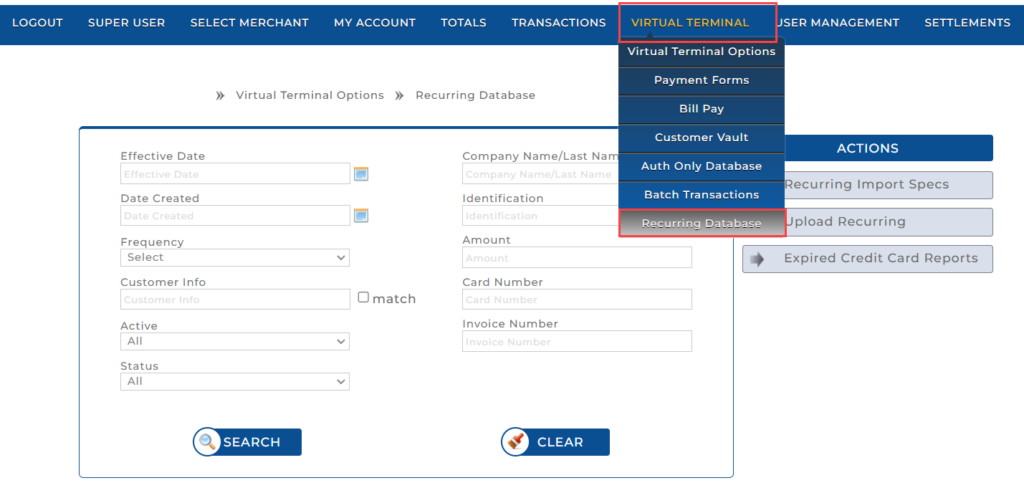
1. Log into Transaction Manager. Select Recurring Database from the Virtual Terminal pull-down menu.
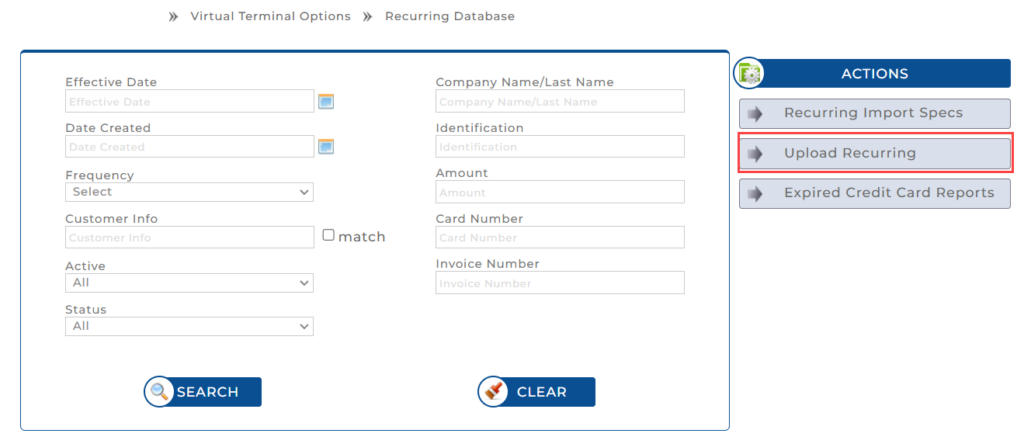
2. Click Upload Recurring.
3. You will be brought to the following screen which provides options to Download Recurring Import Template or to select an existing file and then import.

4. Click Download Recurring Import Template. You will see a download arrow at the top right of your screen. Click on it to access the template that you can populate.


5. Populate the template according to the specifications provided above.

6. Select Choose File to locate the file you created. Once selected, the file name will appear to the right of the Choose File button.
7. Click Import.
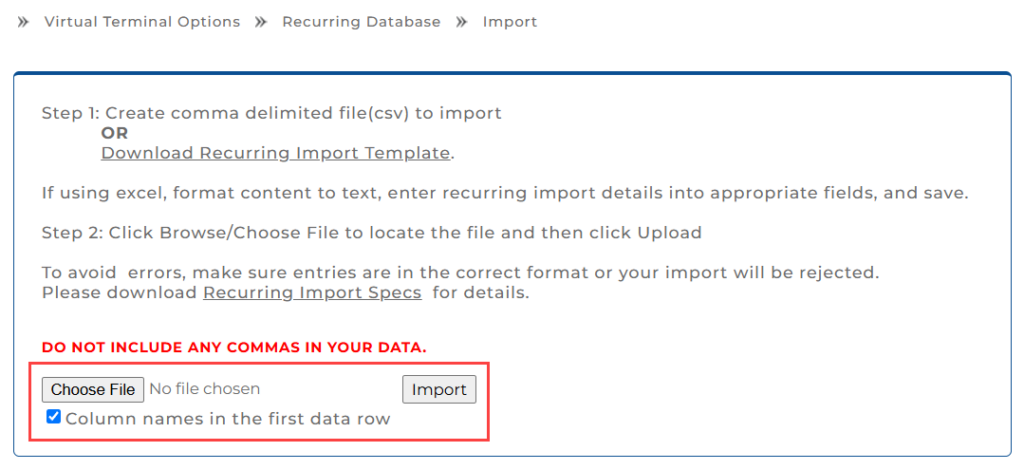
If there are any errors in the file, you will receive a message stating what needs correcting according to the specification. Otherwise, your file is uploaded and ready to be processed for recurring or installment payments.
Note: If you have customers on both recurring and installment payment plans, create one file for all recurring customers and a second file for all installment payment customers so that you can upload both.
Get a monthly summary of technical document updates.