• Home
  • Merchants
  • Developers
  • Partners
  • Contact
  • Home
  • Merchants
  • Developers
  • Partners
  • Contact

HOME / Sideloading App Store on Datecs Device

  • RKI Portal User Guide
  • Sideloading App Store on Datecs Device
  • QuickSale Q3 PinPAD User Guide
  • Release Notes – QuickSale Semi
  • Release Notes – QuickSale 2.0
  • Valid Transaction Responses and Codes
  • QuickSale TapToPhone User Guide
  • Transaction Manager User Guide for Partners
  • Transaction Manager User Guide for Merchants
  • Viewing Recurring Status Report
  • Getting Started with Transaction Manager For Merchants
  • Getting Started with Transaction Manager For Partners
  • How to Set Up and Enable TOTP within Transaction Manager for Channel Partners
  • Viewing Transaction Errors
  • How to Set Up and Enable TOTP within Transaction Manager for Merchants
  • Viewing Software License
  • SMTP Configuration
  • Viewing Failed or Unprocessed Batches
  • Viewing Suspect Batches
  • How to Select a Merchant
  • Merchant Profile Overview
  • How to Retrieve Client Key and Client Secret
  • Viewing Totals in Transaction Manager
  • Viewing Transactions
  • Virtual Terminal User Guide
    • Payment Form Guide
    • Payment Form Specifications
    • Bill Pay User Guide
    • Customer Import Specifications
    • Auth Only Database User Guide and Specifications
    • Batch Transactions for Merchants Guide
    • Batch Processing Specifications for Merchants
    • Recurring and Installment Import Specifications
  • Transaction Manager User Management Guide
  • Transaction Manager Settlements
  • Device Setup Guide
  • Text To Pay User Guide
  • Trigger Values for Testing Transactions
  • QuickSale POS Retail Application User Guide
  • QuickSale 1.0 App User Guide
  • How to maintain battery in terminal
  • QuickSale POS QSR Application User Guide
  • QuickSale 2.0 App User Guide
    • QS-Products App User Guide
  • RKL Configure Setting Tool User Manual
  • Charge Anywhere RMA and Repair Procedures
  • How to Retrieve Merchant ID, Terminal ID, and Identification
  • How to Retrieve Merchant ID, Terminal ID, and Secret
  • QuickSale-Tab Videos
  • How to Order Gift Card Service for Partners
  • SIM Card Activation
    • SIM Card Activation Reference Material
  • How to Install a Wi-Fi Repeater
  • Semi-Integration Application User Guide
  • How to Manually Clear Data and Cache on a QuickSale Device for Channel Partners
  • How to Order Gift Card Service for Merchants

Sideloading App Store on Datecs Device

35 views 0

Overview

This guide provides the procedure for manually installing (sideloading) the Datecs Store application onto production Datecs devices.

Prerequisites

  • Hardware: A Datecs device (e.g., BlueCash 50) and a compatible USB data cable.
  • Connectivity: A PC with access to the internal network share.
  • APK Source: \\op-file\Public\Release Software\android\Datecs\App Store

Installation Steps

Step 1: Enable USB File Transfer

  1. Connect the Datecs device to your PC via USB.
  2. On the device, swipe down from the top of the screen to open the notification tray.
  3. Tap the USB Charging notification to open USB Preferences.
  4. Configure the following settings:
    • USB Controlled By: Select This device
    • Use USB For: Select File Transfer

Step 2: Transfer the Installation File (APK)

  1. On your PC, navigate to the internal file server:
    \\op-file\Public\Release Software\android\Datecs\App Store
  2. Copy the correct APK for your device (e.g., BC50_Signed_DatecsStore_v1_18.apk).
  3. Open the Datecs device storage on your PC and paste the file into the Download folder.

Step 3: Install the Datecs Store

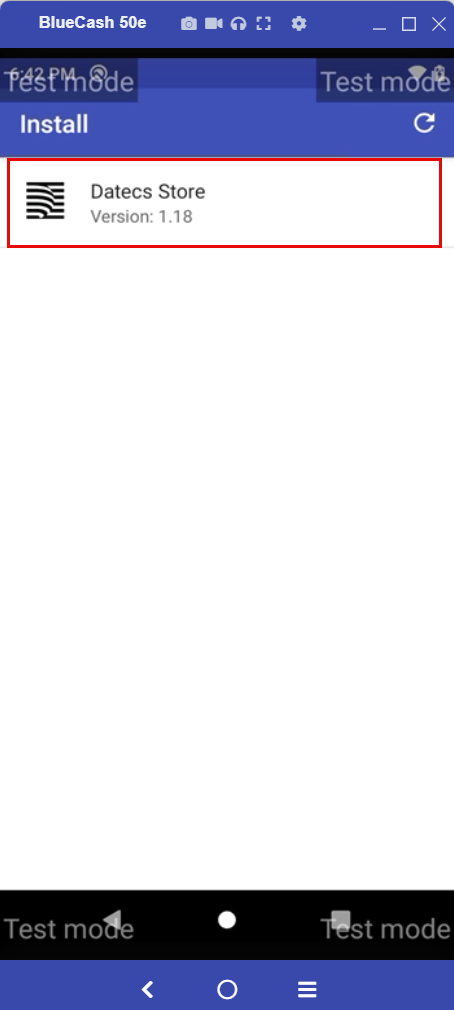
  1. On the Datecs device, navigate to the Install app.
  2. You will see the Datecs Store APK you just transferred. Tap Datecs Store to complete the installation.

Note: For test environment, you may simply drag the APK file from your PC directly onto the device screen (if using a compatible file manager/emulator interface) to initiate installation.

Step 4: Initial Configuration

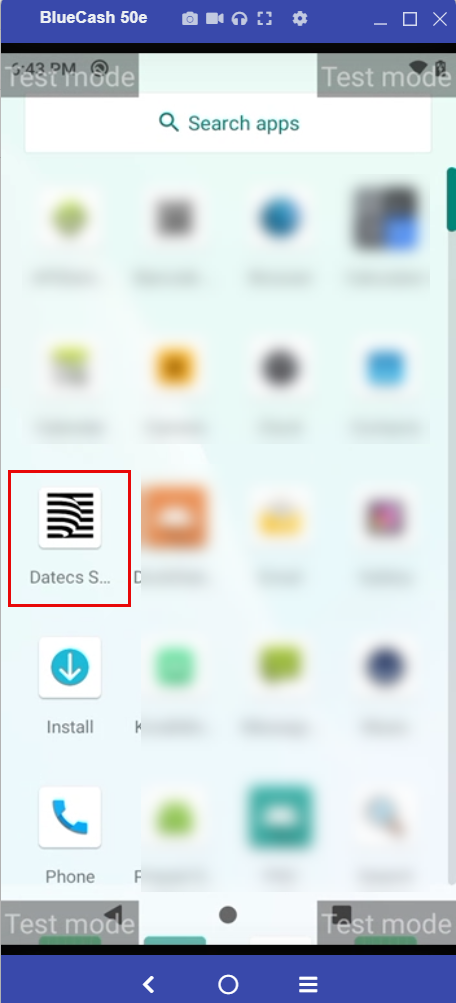
  1. Open the Datecs Store app from the app drawer.
  2. On the region selection screen, select United States.
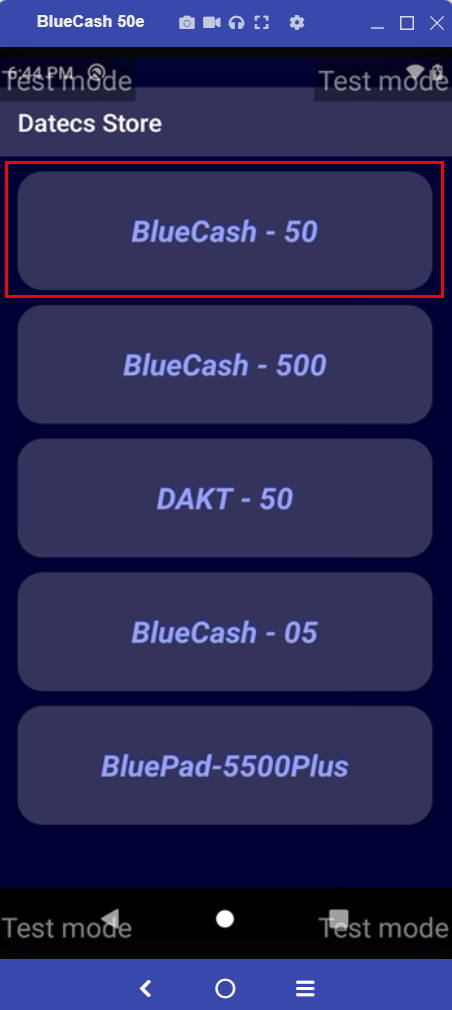
  3. On the model selection screen, select your specific hardware (e.g., BlueCash – 50).
The app will now display the available internal suite, including QS-Semi and QuickSale Terminal 2.0.

Note: If the Install app does not see the APK, ensure the file was moved to the internal Download directory and not a sub-folder.

For further assistance or to report issues with the build files, please get in touch with the Charge Anywhere support at support@chargeanywhere.com.

Subscribe to Documentation Updates

Get a monthly summary of technical document updates.

Was this helpful?

Yes  No
Previously
RKI Portal User Guide
Up Next
QuickSale Q3 PinPAD User Guide

This website and content contains confidential, trade secret information, which is proprietary to Charge Anywhere, LLC, and its subsidiaries (collectively “Charge Anywhere®”) and is provided solely for the recipient's use in connection with the recipient’s participation in one of the Charge Anywhere’s Payment Gateway Programs. Charge Anywhere reserves the right to make changes to the specifications at any time and without notice. The information furnished by Charge Anywhere in this publication is believed to be accurate and reliable as of the date of its release; however, no responsibility is assumed by Charge Anywhere for its use, nor for infringements of patents or other rights of third parties resulting from its use, nor for the violation, misinterpretation, or misapplication of any laws, or any regulation of any credit card association including Visa USA, Visa International, or MasterCard International. No general license is granted under any patents, copyrights, or other intellectual property rights owned by Charge Anywhere and the recipient is only granted an end user license to use this information for the purpose of participating in one of Charge Anywhere’s Payment Gateway Programs, pursuant to an agreement with Charge Anywhere or one of its authorized Program partners. All modifications or improvements to any of the information and specifications in this document shall belong exclusively to Charge Anywhere, LLC. No unauthorized copying, disclosure, or use of this document is permitted without the express written consent of the Charge Anywhere, LLC.

  • Privacy Policy
  • Terms of Use
  • Copyright 2026 Charge Anywhere. All Rights Reserved

×